Meeting Room Video Conference Setup Costs (2026 Guide)
Meeting room video conferencing costs ¥50K–200K for small USB setups, ¥300K–800K mid-size, ¥600K–1.5M+ for Teams Rooms. BYOD vs dedicated, hidden costs.
Meeting room video conferencing costs roughly ¥50,000–200,000 for a small 2–4 person room using a USB all-in-one bar, ¥300,000–800,000 for a mid-size 6–10 person room including a display, ¥600,000–1.5M+ for a Teams Rooms-certified kit, and ¥1.5M–4M for a large room of 12+ with ceiling microphones. These are rough guides. In practice, environmental problems such as echo, unstable Wi-Fi and tangled cables decide how happy people are after installation far more than the equipment price does. This article explains cost by room size, the difference between BYOD (USB) and dedicated-device setups, a cost breakdown, hidden costs, and a pre-order checklist, written for owners and administrative staff at companies without an IT department.
Bottom line: cost guide by room size
Here is the overall picture. All figures are typical 2026 market ranges and vary widely with equipment choice, existing facilities and whether construction is needed. Always get quotes from several suppliers and treat these only as guides.
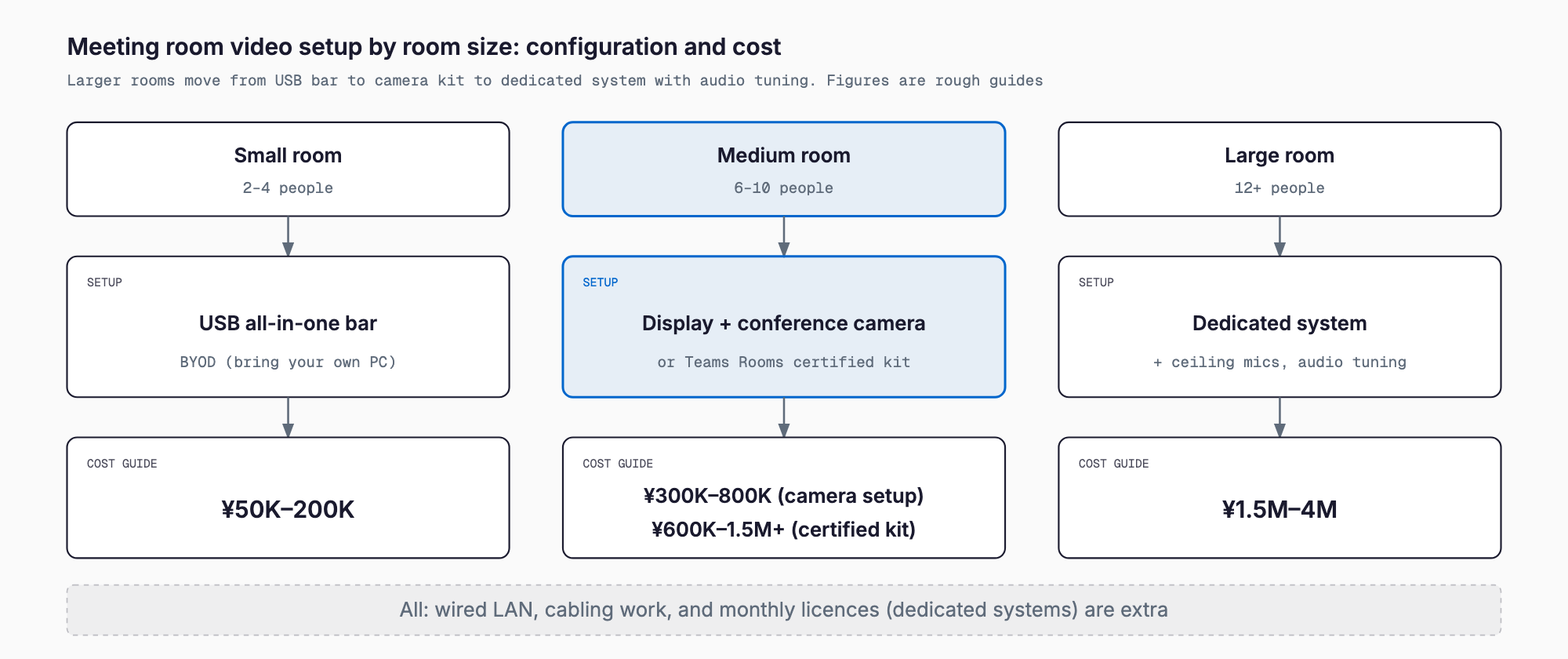
| Room size | Example configuration | Total (guide) | Notes |
|---|---|---|---|
| Small (2–4 people) | USB all-in-one bar (camera, mic, speaker) + existing monitor | ¥50K–200K | Just plug in a laptop. Adding a new display costs about ¥50K–150K more |
| Mid-size (6–10) | USB camera + speakerphone + large display | ¥300K–800K | Includes display, wall mount and cabling |
| Mid-size (dedicated device) | Teams Rooms / Zoom Rooms certified kit + display | ¥600K–1.5M+ | Monthly license fee is separate |
| Large (12+) | Ceiling mics + PTZ camera + DSP + multiple displays | ¥1.5M–4M | Acoustic design and wiring dominate cost; varies greatly with room shape |
Pricier is not automatically better. The basic rule is to choose by how often the room is used and how many meetings involve outside parties. A multi-million-yen setup is excessive for a small room used a few times a week by colleagues, while a laptop and a cheap webcam will fall short in a room used daily for important client meetings.
Configuration types: BYOD vs dedicated device
Meeting room systems follow two ideas. One is BYOD (USB-connected), where each person connects their own laptop to the room equipment. The other is the dedicated-device type (Teams Rooms, Zoom Rooms, Google Meet hardware, etc.), where a device permanently installed in the room starts meetings on its own.
| Item | BYOD (USB) | Dedicated device (Teams Rooms / Zoom Rooms / Google Meet) |
|---|---|---|
| Initial cost (guide) | ¥50K–800K | ¥600K–1.5M+ (more for large rooms) |
| Monthly license | Generally none (uses the meeting app on the PC) | A few thousand yen per room per month (often priced in USD, so it moves with exchange rates). Teams Rooms Pro and Zoom Rooms are often cited at roughly US$40–50 per room per month, but this varies by plan and time |
| Starting a meeting | Bring a PC and connect cables | One-touch start from the panel or calendar integration |
| Strengths | Cheap, works with any meeting app, easy to replace if something breaks | Little preparation, stable picture and sound, remote monitoring and updates from an admin console |
| Weaknesses | Easy to misconnect, per-PC settings, awkward for guests' PCs | Higher initial and monthly costs, tied to one service, needs some admin knowledge |
| Best for | Small companies, 1–3 rooms, tight budgets | Many rooms, no tolerance for start-up trouble, frequent external meetings |
A common pattern is to equip small and mid-size rooms with BYOD first, and switch only the main room used for external meetings to a dedicated device. Putting dedicated devices in every room raises not just initial cost but monthly licenses in proportion to the number of rooms.
Which service to use is decided by your everyday meeting tool. If you are centered on Microsoft 365, Teams Rooms is natural; if on Google Workspace, Google Meet hardware. For help choosing, see Google Workspace vs Microsoft 365 comparison. Companies that mainly use Zoom would consider Zoom Rooms, but you may also need to match the tools your clients use. BYOD has the advantage that it works with any tool through the PC app.
Cost breakdown: where the money goes
When reading a quote, it helps to split it into equipment and installation/setup.
| Item | Cost guide | Point |
|---|---|---|
| Display (monitor) | Small ¥50K–150K, mid-size ¥150K–500K (55–86 inch) | Commercial models differ in durability and warranty. Size it from the room depth |
| Camera | ¥10K–300K | An integrated one is enough for small rooms. Wide-angle, auto-tracking or multi-camera setups are expensive |
| Microphone and speaker | ¥20K–500K (more for large rooms) | Table-top vs ceiling-embedded makes a big price gap. This decides how well people can hear |
| All-in-one bar (camera + mic + speaker) | ¥50K–250K | For small to mid-size rooms; few cables, hard to get wrong |
| Control panel (touch device) | ¥50K–200K | Used with dedicated devices; often unnecessary for BYOD |
| Dedicated device (room PC) | ¥100K–300K | Certified hardware is required for Teams Rooms etc. |
| Wall mount, installation, wiring | ¥30K–300K | Varies a lot with wall structure and whether cables are hidden inside walls |
| Network (adding wired LAN ports, etc.) | Tens of thousands to a few hundred thousand yen | Wired LAN recommended; see the linked article below |
| Setup, testing, user guidance | ¥30K–200K | Check that initial settings and audio checks are included |
| Maintenance and support contract | About 5–15% of equipment cost per year | Check the replacement method on failure (e.g. advance replacement) |
Costs typically balloon in the invisible parts rather than the equipment. Running cables inside walls, opening a ceiling to bring in power, or cutting a floor channel can exceed the cost of the equipment. If construction is involved, ask for a site survey before receiving a quote.
Hidden costs and typical failures
Buying the equipment does not guarantee good meetings. Here are common post-installation problems, viewed through cost.
Room echo and howling: the most common failure. In glass-walled rooms, rooms with hard bare walls or high ceilings, the speaker sound returns to the microphone and echoes, making it hard for remote participants to follow. Rather than buying more expensive microphones, reducing reverberation with carpet, acoustic panels or curtains is often more effective. Acoustic treatment costs tens of thousands to a few hundred thousand yen, and adding it later can affect appearance, so consider it before installing.
Unstable Wi-Fi: if the room camera or PC is on Wi-Fi, video freezes and audio drops. As a rule, give meeting rooms a wired LAN connection. Whether to wire the room and whether Wi-Fi really reaches it are covered in detail in office network and Wi-Fi installation costs.
Missed firmware updates and license renewals: dedicated devices need software updates. If updates stop, the device may no longer connect to new versions of the meeting service. Licenses are monthly or annual, and forgetting to renew can suddenly make meetings impossible. Installing without deciding who manages this causes trouble a few years later.
HDMI cable chaos: with BYOD, HDMI, USB-C and assorted adapters pile up on the table, each PC connects differently, and every meeting starts late. Bringing cables up through a table hole and consolidating them, or designing around a single USB-C cable for video, audio and charging, resolves this.
Mismatch between room use and equipment size: a small-room bar in a room for ten cannot pick up the people at the back. Conversely, a large setup in a room for four only adds cost. Decide first how many people use the room and for what purpose.
No one in charge: if it is unclear who to call and who repairs it, a room can be unusable for weeks. Decide the supplier, the support contact and an internal point person at the start.
Installation and cabling points
Cabling directly affects appearance and usability. Confirm the following with the supplier during the site survey.
- Display position: eye level, visibility from the back of the room, no window glare
- Camera position: a place that captures all participants, centered above or below the display
- Power and LAN positions: for wall mounting, an outlet and LAN port behind the display
- Table-top cabling: cables through a table hole, floor cable covers, not relying on wireless screen sharing
- Future expansion: whether the second and third rooms can use the same configuration
If you are fitting out meeting rooms at the same time as an office move or expansion, the order of work matters. Meeting room equipment tends to be left until last, but unless LAN and power positions are designed together early, extra work after completion raises costs. For the overall IT flow of a move, see the IT cost checklist for office relocation.
Think in monthly fees and five-year totals
Dedicated devices may look cheaper on initial cost alone, but the gap appears once license fees are included. Here is one example of how to think about it (figures are rough guides and vary with exchange rates, plans and contracts).
| Item | BYOD (one mid-size room) | Dedicated device (one mid-size room) |
|---|---|---|
| Initial cost | ¥300K–800K | ¥600K–1.5M |
| Monthly license | ¥0 | A few thousand yen (about US$40–50/month as a guide) |
| Five-year license total | ¥0 | About ¥300K–400K (varies with exchange rates) |
| Five-year maintenance and renewal | A few tens of thousands to ¥200K | ¥100K–300K |
| Five-year total (guide) | ¥350K–1M | About ¥1M–2.2M |
Multiply this by the number of rooms to plan a five-year budget. Putting three rooms on dedicated devices brings the total into the millions of yen. On the other hand, dedicated devices bring operational benefits such as fewer start-up problems and remote status checks. If starting a meeting takes five minutes each time, multiplying by several meetings a day, the number of staff and a year gives a surprisingly large time cost. Judge not only by price but by time and frustration.
About subsidies
The IT Introduction Subsidy mainly supports eligible software and services, and whether hardware such as displays and cameras is eligible depends on the fiscal year and the category. Even if software license fees are covered, equipment purchases may not be, so check the current year's application guidelines and a registered support provider. Local governments and chambers of commerce sometimes have their own equipment grants as well. Subsidies are generally void if you sign or purchase before applying, so research them before ordering.
Pre-order selection checklist
- Have you listed each room's capacity, purpose (internal vs frequent external web meetings) and usage frequency?
- Have you confirmed the meeting tool you normally use and the ones your clients use?
- Have you chosen BYOD or dedicated device by comparing five-year totals of initial cost plus monthly licenses?
- Have you checked the room acoustics (glass, hard walls, ceiling height) on site and considered acoustic treatment?
- Can a wired LAN be run to the room, and are power outlets in the right place?
- Have you decided whether cables go inside walls and ceilings or stay visible?
- Does the quote include a post-installation audio test and user guidance?
- Have you confirmed the support contact, replacement method and warranty period?
- Have you assigned an internal owner for licenses and firmware updates?
- If you add rooms later, can you use the same configuration?
- Have you checked subsidy and grant eligibility against the application guidelines before ordering?
How to proceed: start in stages
Even companies with several meeting rooms do not need to equip them all at once. Taking steps reduces failures.
- Step 1: Assess the current state (1–2 weeks): list usage frequency per room, pain points (sound, video, connection) and the meeting tools in use
- Step 2: Try one room (1–2 months): equip only the busiest room and check usability and audio quality
- Step 3: Roll out: based on the result, install the same or a simplified configuration in other rooms
- Step 4: Set operating rules: summarize booking, connection steps and who to contact on one sheet and post it in each room
Simply posting the instructions in the room greatly reduces the problem of equipment going unused because people do not know how to use it. Communicating how to use it and assigning an owner matter as much as the installation itself.
Frequently asked questions
What is the minimum budget to start web meetings in a small room?
For about 2–4 people, you can start by buying a USB all-in-one bar (camera, mic and speaker in one) for roughly ¥50,000–200,000 and connecting it to your laptop and an existing monitor. If you need a new display, add about ¥50,000–150,000. Starting small and checking usability first is the safe approach.
Does Teams Rooms require a monthly license fee?
Generally, dedicated-device systems require a monthly license per room. It is often cited at roughly US$40–50 per month, but because it depends on plan, timing and exchange rates, check the latest price with the vendor or reseller. A USB BYOD setup normally needs no room-side license.
Can a meeting room run on Wi-Fi alone?
For small, short-duration use Wi-Fi can work, but video freezes and audio drops become likely. Room devices and camera-equipped PCs should be connected by wired LAN. If wiring is difficult, you may need to review the business Wi-Fi design itself.
Can I use a subsidy?
The IT Introduction Subsidy mainly covers eligible software and services, and hardware eligibility depends on the fiscal year and category. You need to check the current year's application guidelines and a registered support provider. Also look into local government and chamber of commerce grants, and always confirm before ordering.
When planning meeting room video conferencing equipment, thinking beyond equipment price to room acoustics, network, ownership and monthly fees helps you avoid big mistakes. We recommend trying one room first and expanding based on the result.
Related free tools (no sign-up, instant results)
Feel free to contact us
Contact Us