Migrating Access Databases: 5 Options and Costs for SMBs
Moving an Access customer or order database? Compare five options: keep Access, kintone, Power Apps, SaaS or a web rebuild, plus costs and a 5-step plan.
Internal databases built in Microsoft Access, such as customer ledgers, order management, and inventory, usually come up for migration when the person who built them leaves, an Office update breaks them, or remote work makes file sharing unstable. There are five broad destinations: keep Access alive, no-code tools such as kintone, Power Apps, packaged SaaS, or a rebuilt web system. As a general market guide, costs start from a few hundred thousand yen for small cases, run roughly 1.5 to 5 million yen for a mid-sized rebuild of a business process, and often exceed 5 million yen when other systems are involved.
This article is written for business owners and administrative staff at companies without dedicated IT staff. It covers the warning signs, a comparison of the five destinations, cost guides, a step-by-step process, and common pitfalls. Costs are general market ranges only, and they vary widely with data volume, number of screens, integrations, and how well requirements are defined.
Signs it is time to consider migration
Access makes it easy to build business systems, but it also makes it easy to end up with something only its creator understands. If several of the following apply, start considering migration.
- The person who built it left or was reassigned, and nobody can explain how it works
- Nobody inside or outside the company can modify screens or reports
- An Office upgrade or a switch to 64-bit broke forms or macros
- It is slow or locked when several people use it at once, or shows a database-corrupted message
- It cannot be used from home or on the road, and VPN or remote desktop is stretched to cover it
- Everyone connects to a single file on a shared folder, and corruption could wipe out all the data
- Backups are manual, or nobody knows whether they are being made
- Data is exported to Excel and reworked by hand, creating extra ledgers
- Links with partners, accounting software, or e-commerce are handled by manual copy and paste
- It takes a long time to open, or the file size is nearing its limit
The departure of the owner and the risk of a corrupted shared file are especially important: dealing with them after they happen means business stops. A planned move while everything still works costs less and causes less confusion. For the broader issue of key-person dependency, see how to resolve person-dependent systems.
Five destinations compared
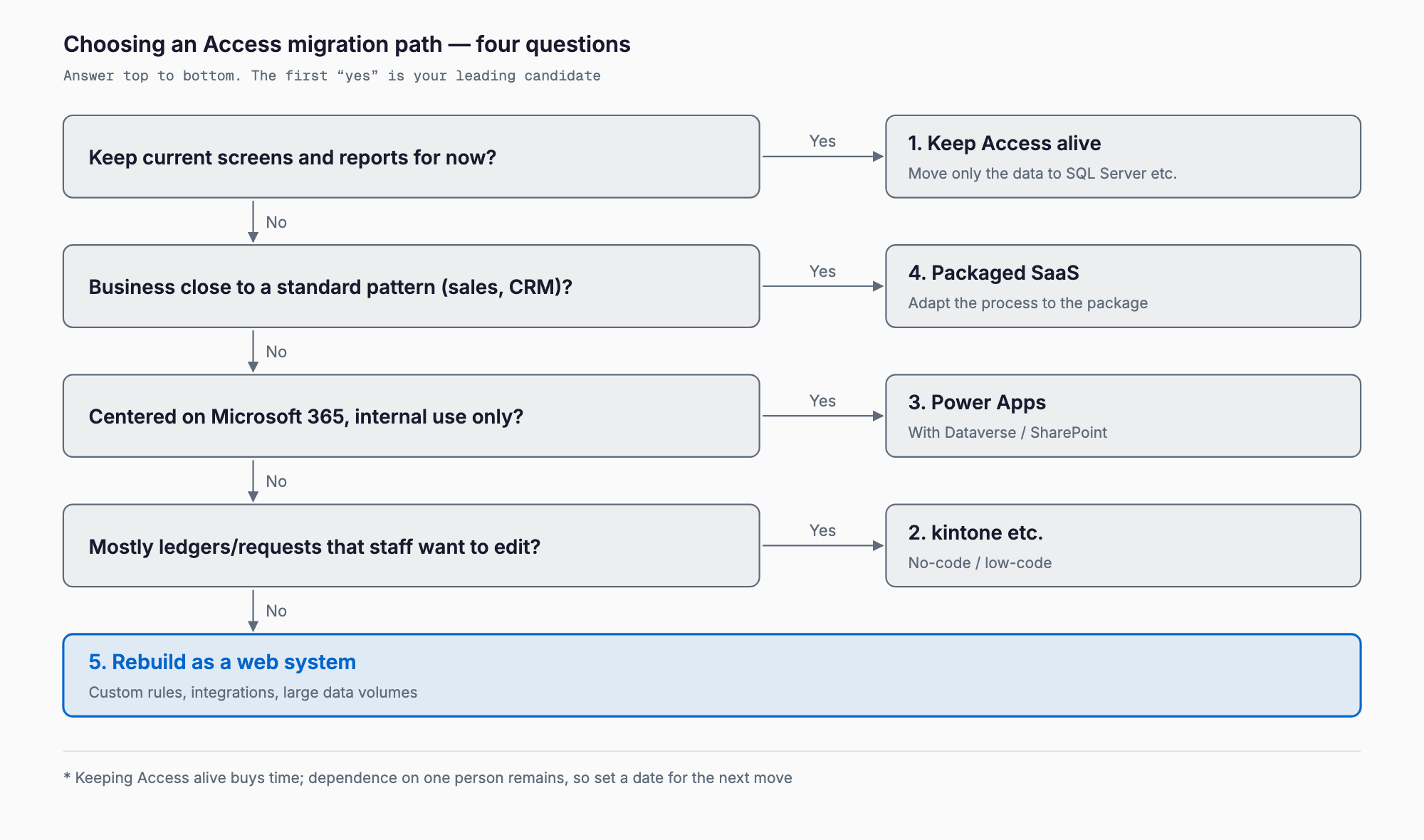
There is no single right answer. The best fit depends on the number of users, how complex the screens are, how many printed forms you have, integrations, and how often you expect to change things. Costs are general market ranges and vary with scale and requirements.
| Destination | Best for | Cost guide | Watch out for |
|---|---|---|---|
| 1. Keep Access (refactor; move data to SQL Server or Azure SQL) | Many screens and reports that are costly to rebuild; staff do not want the interface to change for now | 300,000-1,500,000 yen | Key-person and update risks remain; the front end still depends on each PC's Office environment |
| 2. No-code / low-code such as kintone | Ledger, case, or request-style work; staff want to adjust screens themselves | Initial 200,000-1,500,000 yen plus monthly fees (about 1,500 yen per user is typical) | Weak at complex calculations, elaborate forms, and very large data; license fees continue |
| 3. Power Apps + Dataverse / SharePoint | Already using Microsoft 365; internal business apps | Initial 300,000-2,000,000 yen plus licenses | Operations can get complicated depending on design; check Dataverse capacity and license terms |
| 4. Packaged SaaS (sales management, CRM, etc.) | Work close to a standard pattern with few custom rules | Initial 0-500,000 yen plus a few thousand to tens of thousands of yen per month | You adapt your work to the package; custom forms and special calculations tend to cost extra |
| 5. Rebuild as a web system (custom development) | Custom business rules are a strength; integrations and long-term use matter | 1,500,000-5,000,000 yen or more | Requirements and vendor selection are hard; compare including post-launch maintenance |
In practice, many companies combine options, for example kintone for the customer ledger, an accounting SaaS for invoicing, and a small web app only for a special quotation calculation.
Option 1: Keep Access alive
Here only the data tables are moved to a database such as SQL Server or Azure SQL, while forms and reports stay in Access. Corruption from file sharing and slowdowns from simultaneous use improve considerably. However, the lack of anyone who can maintain Access, and the need to re-test with each Office version update, remain. It is realistic to treat this as a way to buy a few years while you plan a proper migration.
Option 2: No-code / low-code such as kintone
Table-centered work such as customer ledgers, case management, and inquiry tracking is easy to move into no-code products like kintone. Staff can adjust screens themselves, and remote work is supported. But detailed calculation logic, elaborate printed forms, and data beyond several hundred thousand records are limits. Excessive customization can make maintenance hard, so review the limits of kintone customization beforehand. For an overview of choosing products, see our no-code and low-code guide.
Option 3: Power Apps + Dataverse / SharePoint
Companies already subscribed to Microsoft 365 can build a business app with Power Apps and store data in Dataverse or SharePoint lists. It is often mentioned as a destination from Access, and authentication and permissions line up easily within the Microsoft ecosystem. However, SharePoint lists have limits on data volume and features, and Dataverse or premium features may require additional licenses. Please confirm current specifications and pricing with Microsoft or a reseller.
Option 4: Switch to packaged SaaS
There are many ready-made SaaS products for sales, inventory, customer, and order management. Initial costs are lower than custom building, and legal changes and new features are applied automatically. On the other hand, they may not reproduce the custom rules and forms built up in Access. You must be ready to change your work to fit the package, and the burden of changing daily operations should be part of the decision.
Option 5: Rebuild as a web system
If custom calculations and business rules are a competitive strength, or there are many integrations with other systems, rebuilding as a web system is an option. It works from a browser, so it suits remote work and multiple sites, and permissions and audit logs are easier to design. It is also usually the most expensive, and the quality of requirements and the choice of vendor decide success. If you are unhappy with a past vendor or need someone to take over maintenance, see the guide to switching development vendors.
Cost guide by scale
The table below shows general market ranges by size of Access system. Even with the same number of tables, costs vary greatly with the amount of VBA, number of forms, integrations, and how messy the data is. The basic approach is to collect quotes from several vendors based on the same assumptions.
| Scale | Typical situation | Cost guide | Duration guide |
|---|---|---|---|
| Small | A few tables, a handful of screens and forms, a few users, almost no VBA | Several hundred thousand to about 1,000,000 yen | 1-2 months |
| Medium | Full business flow (orders, inventory, billing), dozens of screens and forms, VBA, 10-30 users | About 1,500,000-5,000,000 yen | 3-6 months |
| Large / integrated | Integrated with accounting, e-commerce, or core systems; complex VBA; large data | 5,000,000 yen and up | 6 months to over a year |
When reading quotes, check that they include not just development but data migration, investigation of the old system, testing, training, and maintenance. The ranges above exclude monthly license and maintenance fees. For general thinking on development pricing, see system development costs and market rates.
A five-step process
- Step 1: Inventory what you have (tables, queries, forms, reports, VBA macros, users)
- Step 2: Check and clean data quality (duplicates, inconsistent spelling, missing values)
- Step 3: Choose the destination (narrow down the five options by requirements and budget)
- Step 4: Run in parallel (operate old and new side by side and compare results)
- Step 5: Cut over and keep the old database as read-only
In Step 1, list every component inside Access: tables and fields, number of queries, forms and reports, amount of VBA and macro code, and who uses it and how often. You will often find unused screens and queries, which is a good chance to narrow the migration scope. Even when the creator is gone, an outside specialist can usually read the file and document the specification.
Step 2, data quality, is often neglected but important. Inconsistent customer names (position of the company-type word, full-width versus half-width characters), duplicate partners, blank required fields, and dates stored as text cause trouble if carried straight over. Decide the rules and clean the data before migrating.
Step 3 applies the inventory results to the comparison table above. In Step 4, for a set period either enter data in both systems, or make the old database reference-only and operate the new one, then confirm that billing amounts and stock counts match. In Step 5, keep the old database as read-only after cutover. It helps when you need to look up past transactions or find something that was missed.
Common pitfalls
- Business logic hidden in VBA: automatic calculation, numbering, and update processing behind buttons that were never documented
- Excel links: the flow of exporting from Access and reworking in Excel is overlooked
- Reproducing forms: invoices or delivery notes that differ even slightly draw complaints from partners
- Character encoding and date types: garbled text, mixed full-width and half-width characters, dates stored as text, era-based dates, and empty dates cause errors during migration
- Double entry during migration: entering in both old and new systems burdens staff and causes omissions and mismatches
- Skipping the inventory: rebuilding even unused features inflates cost and schedule
- Unclear permissions and rules: going live without deciding who can view and change what
Hidden VBA logic and Excel links in particular are so routine for staff that they rarely come up in interviews. Doing the inventory while watching people actually operate the system makes them easier to find. For turning Excel-managed work into a proper system, see our Excel to system migration guide.
Frequently asked questions
What is the biggest risk of continuing to use Access?
The biggest risks are that nobody can modify it once the owner is gone, and that a corrupted shared file loses data. Needing to re-test after Office version updates or a move to 64-bit is another risk.
How long does migration take?
As a general guide, one to two months for small cases, three to six months for mid-sized ones, and six months to over a year for large systems with integrations. Allowing time for the inventory and data cleanup helps prevent delays overall.
The person who built it has left and nobody understands the Access file. Can we still migrate?
Often yes. Table structures, queries, forms, and VBA code can be read from the file, so a specialist can investigate and document the specification. However, how staff actually use it must be gathered through interviews, and the investigation costs extra.
Will moving to kintone or Power Apps be cheaper?
Initial costs are often lower, but monthly license fees continue. With many users, compare the multi-year total against a web rebuild.
Related free tools (no sign-up, instant results)
Feel free to contact us
Contact Us