Office UPS Guide: Cost and Choosing One to Survive Outages
Protect your NAS and servers from outages and dips. UPS costs (about 15,000-40,000 yen), sine wave, sizing, auto-shutdown and lightning protection for SMBs.
For a small business, the practical way to start power-outage protection is to put a small UPS (uninterruptible power supply) on the NAS, servers and network equipment first. As a rough guide, a small UPS costs about 15,000-40,000 yen, a unit suited to a NAS or server about 30,000-100,000 yen, and a rack-mount model 100,000-300,000 yen or more. Batteries need replacing every 2-5 years at a few thousand to tens of thousands of yen each time (all figures are approximate). A UPS is not meant to keep you working for hours. Its job is to buy enough time to shut equipment down safely, so the power cut does not corrupt your data.
Many owners think, "We hardly ever have blackouts." But the bigger risk is not an hours-long outage. It is a momentary dip that lasts a fraction of a second, or a voltage disturbance from a lightning strike. Even that can damage a NAS or server in the middle of a write. This article is written so that a company without an IT department can decide for itself: what to protect first, UPS types, how to size one, automatic shutdown, cost by company size, lightning protection and day-to-day upkeep. For the wider picture of business continuity, see IT business continuity basics (IT-BCP).
Why outages and momentary dips matter in an office
When power is cut suddenly, PCs and NAS devices can lose whatever they were writing. The damage differs by device, but these are the cases small offices run into most often.
- NAS files or RAID get corrupted: A cut during a write can damage files or leave the RAID (a set of disks that protect each other) inconsistent, so a rebuild can take hours. In the worst case, the shared folders will not open
- Servers or databases will not start: If the database behind your accounting or business software stops mid-write, it may need repair at the next boot
- Routers, ONUs and switches reboot: The network goes down for several minutes, taking cloud services and IP phones with it. Some devices lose settings after restarting
- Unsaved PC work disappears: Laptops have batteries and are mostly safe, but desktop PCs lose anything not yet saved
The moment power returns can also be harmful, because voltage may be unstable or a surge of current may flow. The real damage is not that things stop, but that they break. Without a backup, broken data is hard to recover. See how to back up company data and what it costs for details. Think of a UPS not as a substitute for backups, but as a device that reduces the accidents that make you need them.
What to protect first
Putting a UPS on everything gets expensive. Protect first the equipment where data is easily damaged and where a stoppage hurts most.
| Priority | Equipment | Why | Guidance |
|---|---|---|---|
| 1 | NAS, file server, business servers | Data and RAID can break if power drops mid-write; affects every employee | Close to essential |
| 2 | ONU, router, UTM, switch, Wi-Fi base | A momentary dip reboots them and the whole network stops for minutes | Strongly recommended |
| 3 | Multifunction printer, IP phone main unit | Reboots can leave settings or lines unstable | As needed |
| 4 | Desktop PCs | Unsaved work is lost; costly if you have many | Key work PCs only |
| 5 | Laptops | Built-in battery | Usually not needed |
In practice, connecting the NAS and network equipment to one small UPS gives the best value. You rarely need to protect every desktop. If your rule is to save files to the NAS or cloud, the damage from a dip on the PC side stays small. For how security appliances fit in, see UTM and firewall costs.
UPS types and how they differ
UPSs come in three main designs. The names are technical, but the differences boil down to how carefully they condition the power, and the price.
| Type | How it works (simply) | Approx. price | Suited to |
|---|---|---|---|
| Standby (offline) | Passes wall power through normally and switches to battery during an outage | Low (about 10,000-30,000 yen) | Home PCs, routers |
| Line-interactive | Corrects high/low voltage automatically and switches to battery during an outage | Mid (about 20,000-100,000 yen) | NAS, small servers, network gear |
| Online (double conversion) | Always supplies power through the battery circuit, so there is no switchover gap | High (100,000 yen and up) | Critical servers, medical or manufacturing equipment |
For a typical small-business office, a line-interactive UPS is enough in most cases. An online type gives more peace of mind but is pricier and larger. Consider it only if you have a core server whose stoppage would cause serious loss.
Square wave vs. sine wave: choose sine wave for NAS and servers
When a UPS runs on battery, its output waveform is either a "square wave" (or stepped approximation) or a "pure sine wave". Cheap models may output a square wave. That works for simple PCs, but some devices do not get along with it.
- Pure sine wave: The same shape as wall power. NAS devices, servers and equipment with power-factor-corrected (PFC) supplies run stably on it. Choose sine wave for anything with a NAS or server
- Square wave: Cheaper, but some equipment fails to run, hums, or shuts off. Treat it as suitable for simple devices only
Always check that the specification says "pure sine wave". A manual that says "for servers and NAS" is usually a sine-wave model. Also check whether the maker of your NAS or server publishes a list of UPSs it has tested.
Choosing capacity: VA and watts
UPS capacity is shown in VA (volt-amperes) and W (watts). What matters is that the total power draw of your equipment stays within the UPS's watt rating. Choosing by VA alone can leave you short.
- Step 1: Find each device's power consumption (W) on its label, manual or the maker's site. A NAS is often around 30-60 W; a router or ONU about 10-20 W each
- Step 2: Add them up. Example: NAS 50 W + router 15 W + ONU 10 W + switch 15 W = 90 W
- Step 3: Add margin, about 1.3-1.5 times the total. In this example, 120-135 W or more
- Step 4: Pick a model whose rated output (W) exceeds that. The VA figure is often about 1.5-1.7 times the watt figure, depending on power factor
Runtime is not a case of "longer is better". The goal is to secure 5-10 minutes for an automatic, safe shutdown. If you want to keep working through a half-day outage, you need a generator or large battery system instead, and the cost jumps by an order of magnitude. For most small businesses, enough time to shut down cleanly is sufficient. Check the maker's runtime chart to see how many minutes you get at your total wattage.
Automatic shutdown is where the real value lies
Plugging in a UPS alone only delays the cut until the battery runs out. It becomes useful only once you also set up automatic shutdown, where devices detect the outage and power themselves down. Outages at night or on holidays happen when nobody is there to do it by hand.
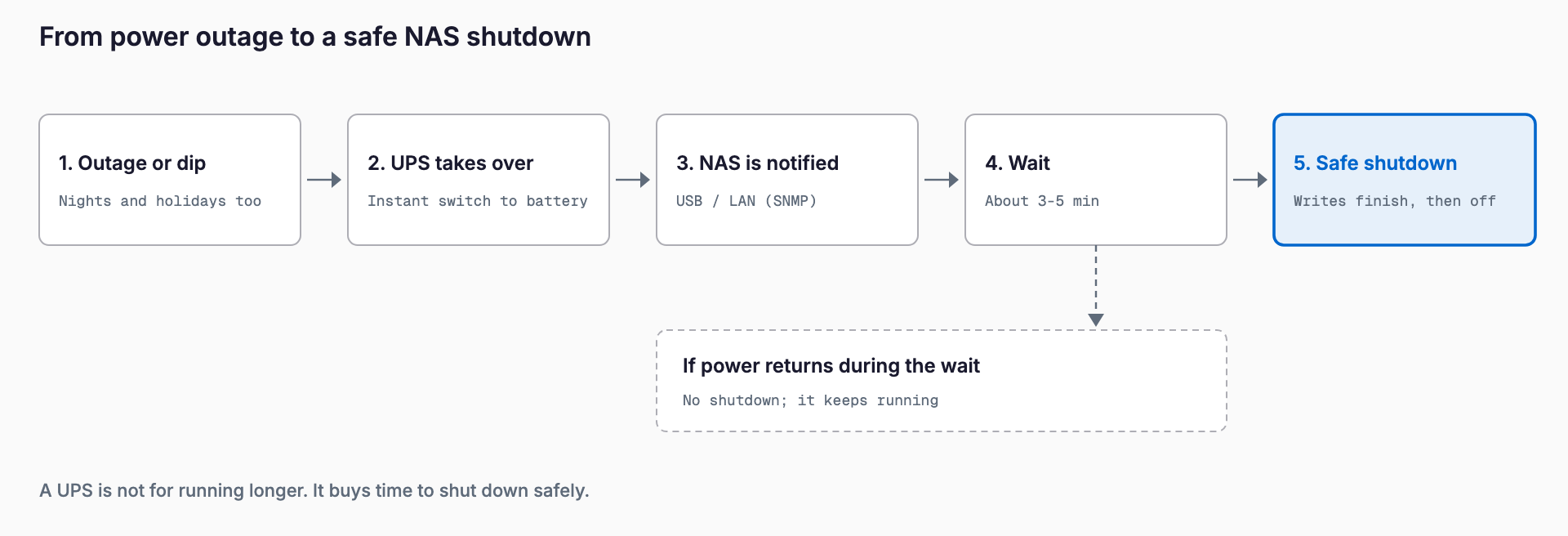
- USB connection: Connect the UPS to the NAS or server with a USB cable. Most NAS devices recognize a USB-connected UPS and shut down automatically. This is the simplest and most common method
- Network card (SNMP, etc.): Add a LAN card to the UPS to notify several devices over the network. Useful when you have multiple servers or a rack setup
- Bundled software: Windows PCs and servers can shut down automatically using software supplied by the UPS maker
On a NAS, open the admin screen, find the UPS setting, enable it, and choose to shut down when the battery is low or after a set number of minutes on battery. If one NAS is connected by USB, set it as the main unit. When several devices share one UPS, make the first the main unit and the rest follow it over the network. After setup, pull the UPS's own plug from the wall and confirm the shutdown really works.
Also set the wait time carefully. If it is too long, the battery dies first. If it is too short, every brief dip triggers a shutdown, which is a nuisance. Something like "start shutting down after 3-5 minutes on battery", leaving margin within the battery's runtime, works well.
Cost guide by type and company size
The tables below are rough cost guides. Prices vary widely by product, model and configuration, so please treat them as approximate.
| Category | Approx. price | Equipment it can protect | Notes |
|---|---|---|---|
| Small UPS (standby, mostly square wave) | 15,000-40,000 yen | Router, ONU, small devices | Home or light use |
| For NAS / small servers (sine wave) | 30,000-100,000 yen | NAS plus network equipment | The mainstay for small business |
| Tower, large capacity | 80,000-200,000 yen | 1-2 servers plus network gear | Longer runtime |
| Rack-mount | 100,000-300,000 yen or more | Servers, UTM, switches | When you have a server rack |
| Battery replacement | A few thousand to tens of thousands of yen | Same as above | Every 2-5 years, by model |
Here are realistic setups and rough costs by company size.
| Size | What to protect | Example setup | Approx. initial cost |
|---|---|---|---|
| 5 employees | 1 NAS, router, ONU | 1 sine-wave small UPS | 30,000-60,000 yen |
| 20 employees | NAS, router, UTM, switch | 1-2 sine-wave UPSs (sometimes split between NAS and network) | 60,000-200,000 yen |
| 50 employees | Several servers, NAS, UTM, switches, Wi-Fi base | Rack-mount or large UPS plus network card | 200,000-600,000 yen |
Batteries are consumables. Depending on model and environment, plan on replacing them every 2-5 years. Think in terms of the five-year total, not just the purchase price. If a 50,000 yen UPS needs a 10,000 yen battery in year three, the five-year cost is about 60,000 yen. For the total cost of the NAS itself, see the cost of a NAS file server.
When cost is the sticking point, try converting "how much would it hurt if this stopped?" into money. If a broken NAS takes days to recover, the labor and lost business during that time usually far exceed the cost of the UPS. A UPS is insurance, and one of the cheaper kinds.
Lightning and surge protection: lightning does not only come through the power line
Lightning damage is a separate problem from outages. When lightning strikes nearby, a very high voltage spike (a surge) can flow through power or communication lines for an instant and burn out circuit boards. Surges come not only through outlets, but also through LAN cables, phone lines, optical-line equipment and antenna cables.
- Power side: Use a surge-protecting power strip (from a few thousand yen) or the surge protection built into the UPS. Note that cheap strips may not withstand a strong strike
- LAN and phone side: Fit a LAN surge protector (SPD) on cables that leave the building. This matters most for links between sites and for outdoor cameras
- Wiring: Plugging power and LAN into separately protected strips can give surges a path between devices. Keep connected devices on the same protected strip
Review the wiring of key equipment before the thunderstorm season (summer). When lightning is close, unplugging both the power cable and the LAN cable is the surest method, but that is rarely practical during business hours. In lightning-prone areas, or buildings with outdoor cabling, also check what your insurance (such as a general property policy) covers. Whether lightning damage to equipment is covered depends on the contract.
Operations: what to do after installing
A UPS is not install-and-forget. A worn battery may last only a few dozen seconds when it counts. Build these habits into your routine.
- Battery replacement: Plan on 2-5 years (varies by model) and stick the purchase date on the unit. Replace early when the display or lamp warns "replace battery". Heat shortens battery life
- Annual test: Outside working hours, pull the UPS plug and confirm that equipment keeps running and shuts down automatically. Use the maker's self-test function too
- Placement: Put it somewhere ventilated. On the floor it is exposed to water and dust. Near the NAS or server, cables stay short
- Managing what is connected: Adding devices later can exceed capacity. Do not connect heaters, vacuum cleaners or laser printers, which draw a lot of power
Before a building's scheduled power shutdown
Tenants in leased buildings usually face a planned outage for legally required electrical inspection about once a year. You know about it in advance, which is a valuable chance to prepare, and it lasts far longer than any UPS battery. Decide the steps beforehand.
- When the building manager gives you the date, decide by the day before who will shut down the NAS and servers by hand, and in what order
- On the morning of or the evening before, power off the NAS and servers. Switch off the UPS too (left on, it runs until the battery dies and ends in an unclean stop)
- After power returns, switch on network equipment, then NAS and servers, then PCs
- Afterward, check that shared folders open, business software runs and backups are working
Put the steps on a single sheet of paper near the NAS or server, so that someone else can do it if the usual person is away. Without a written procedure, many companies get confused about the power-on order every time.
Checklist before and after installation
- Decided the priority (NAS and servers, then network equipment, then key PCs)
- Looked up each device's wattage and added 1.3-1.5 times margin to the total
- Chose a pure sine wave UPS for NAS and servers
- Confirmed the UPS's rated output (W) exceeds the required total
- Connected the UPS to the NAS or server (e.g. by USB) and set up automatic shutdown
- Pulled the UPS plug and confirmed automatic shutdown works
- Recorded the purchase date and set a battery replacement time (2-5 years)
- Put the annual test date on the calendar
- Considered surge-protecting strips and LAN surge protection
- Wrote a procedure for the building's scheduled power shutdown
- Confirmed that backups exist off-site or on separate media
Frequently asked questions
Can we keep working during an outage if we have a UPS?
No. A typical small UPS lasts only a few minutes to a little over ten minutes. Its purpose is not to keep you working but to shut the NAS and servers down safely and protect the data. To keep working through an outage you need a large battery system or a generator, which costs far more.
Is a home-use UPS fine for the office NAS?
Some models work, but for a NAS or server we recommend a pure sine wave UPS with spare capacity. With a square-wave unit, equipment may not run correctly or may shut off during an outage. Before buying, check the NAS maker's compatibility list and the output waveform in the specifications.
Do laptops need a UPS too?
Usually not. Laptops have a built-in battery and keep running during an outage. However, external drives attached to them and network devices such as routers and NAS will stop, so those are the more important things to protect.
How often does a UPS battery need replacing?
It depends on the model and environment, but 2-5 years is a common guide. Heat shortens battery life. Replacement usually costs a few thousand to tens of thousands of yen and is often cheaper than buying a new unit. Replace it early once the screen or lamp warns you.
Related free tools (no sign-up, instant results)
Feel free to contact us
Contact Us