Lost or Stolen Company PC or Phone
First-Hour Response and Costs
First-hour steps after a lost or stolen company PC or phone: police report, password reset, remote wipe, and breach reporting. Includes costs and checklists.
When a company PC or smartphone is lost or stolen, the basic rule is to run three things in parallel within the first hour: disable the device, protect the accounts, and decide whether you must report. The device itself matters less than the customer data stored on it and the email or cloud accounts that may still be signed in. Because there is little you can do after the fact, the size of the damage is largely decided by preparation. Disk encryption (BitLocker on Windows, FileVault on Mac) is built into the OS at no extra cost, device management (MDM) starts at a few hundred yen per device per month, and combined with a screen lock and multi-factor authentication (MFA) it brings you close to a state where a lost device simply cannot be read. This article is for owners and non-IT staff at small and mid-sized companies, and covers the first-hour timeline, preventive measures, costs, and checklists. All costs are rough guides.
What actually happens when a device is lost: the contents matter more than the hardware
Even if a lost device never turns up, the replacement cost (roughly 100,000 to 200,000 yen for a PC and 50,000 to 150,000 yen for a smartphone as a guide) is not fatal to a business. The real problems are these three.
- The data on the device can be read: customer lists, quotes, contracts, and photos can reach a third party
- Signed-in services can be accessed: if email, chat, cloud storage, or business systems stay signed in, someone may get in without knowing any password
- Customers and partners get involved: if personal information is involved, legal reporting and notification to the people affected may be required
So the response is not about searching for the device. It is mainly about protecting information and accounts. Even if the device turns up later, someone may have touched it, so if it held important information it is safer to change passwords anyway.
The first hour: who does what, in order
People tend to panic right after noticing a loss. Simply agreeing on an order greatly reduces missed steps. The table below is a rough flow split between the employee, the person in charge of IT (a one-person IT role or the owner), and outside parties.
| Time (guide) | Who | What to do |
|---|---|---|
| Right away (within 10 min) | Employee | Tell your supervisor and the IT person. Share where and when you last used it, the device type, and whether it was locked. Do not delay the report by searching alone or trying to hide it |
| Within 20 min | IT person | Check the device location (Find My / MDM) and run a remote lock. Prepare to decide on a remote wipe in case locking fails |
| Within 30 min | IT person | Change the user's account passwords and force sign-out of active sessions. Do email, chat, cloud, then business systems |
| Within 40 min | Employee and IT person | File a lost-property report (loss) or a theft report (theft) with the police and note the receipt number. If theft is likely, call 110 or go to the nearest police box |
| Within 50 min | Owner and IT person | List the kind and amount of information on the device and check whether personal or partner data was included. Use this to judge whether reporting is needed |
| Within 60 min | Owner | Decide whether to report, and if so start preparing notices to partners and the initial report to the Personal Information Protection Commission. Start a timeline log |
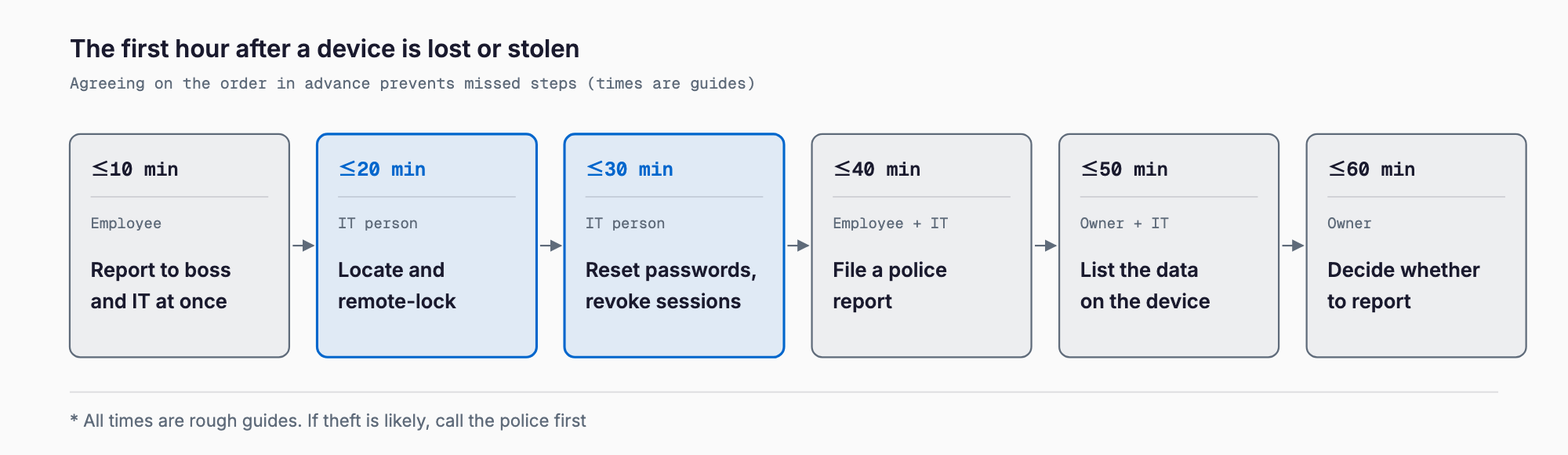
The most important point in this hour is not to wait because it might turn up. A lock and a password change can be undone if the device is found. Waiting while damage happens cannot be undone.
Step 1: What the employee does first
- Report immediately: staying silent out of fear of being blamed only lets damage grow. A rule that early reporters are not blamed speeds reports up
- Share what you remember: where and when you last used it, the device type (PC or phone), whether it had a screen lock, and which apps were signed in
- Search only within reason: places you visited, the lost-property counter of public transport, and so on. Do not search for a long time before reporting
- Use the personal Find feature: iPhone Find My and Android Find My Device can show the location or lock the device, if set up beforehand
Step 2: Protect accounts (password change and session revocation)
Account protection runs alongside locking the device. Note that changing the password alone is not enough. Many services remember a device as trusted after sign-in, and it may stay signed in for a while even after a password change. So together with the password change, run "sign out of all devices" or session revocation.
- Email: from the Microsoft 365 or Google Workspace admin console, reset the user's password and revoke their active sign-in sessions
- Chat and cloud storage: sign the lost device out of Slack, Teams, Google Drive, Dropbox, and similar services
- Business and accounting systems: change passwords individually, and disable the device in the admin screen where possible
- Passwords saved in the browser: change passwords for other services saved in that browser, starting with the most important
- MFA device: if the lost phone was your authenticator or SMS receiver, remove and re-register the MFA enrollment
Password management and MFA are covered in more detail in account, password, and MFA basics for SMBs. If MFA is enabled beforehand, the lost device alone cannot be used to sign in.
Step 3: Remote lock and remote wipe
Even when the device is out of your hands, features exist to operate it remotely once it connects to a network. Lock makes it temporarily unusable and can be released if the device is found. Wipe erases the data on the device and cannot be undone.
| Action | What it does | When to use | Caution |
|---|---|---|---|
| Remote lock | Locks the screen and can show a contact message | Run first as soon as you notice the loss | May not take effect until the device is online |
| Location check | Shows the device on a map | Run together with the lock | If it is off or out of range, only the last known position shows. If it appears in a suspicious place, call the police instead of going yourself |
| Remote wipe | Erases all data on the device | When theft is likely, or important data is on a device that is hard to recover | Cannot be restored. Anything not backed up to the cloud is lost. Get the owner's approval first |
A wipe is powerful, but keep a record that you ran it. When you later decide whether to report, the fact that the data was erased remotely helps explain the scope of the damage. Note that a wipe only runs once the device connects to the network. With MDM you can set it to run automatically the next time the device comes online.
Types of MDM, how to choose, and detailed costs are covered in the MDM guide for smartphones and tablets.
Step 4: Report to the police (lost or stolen)
File a lost-property report for a loss, or a theft report (damage report) if theft or pickpocketing is suspected. You will need the following.
- Device type, maker, model, color, and distinguishing features (case, stickers)
- Serial number or IMEI (phone identifier). If you keep an asset register, you can answer immediately
- Date, time, and place you noticed the loss, and where you last used it
- Identification and the company contact details
Keep the receipt number. It may be asked for when making an insurance claim, reporting to partners or the Personal Information Protection Commission, or suspending the line with the mobile carrier. For smartphones, also contact the carrier to suspend the line temporarily to prevent misuse.
Step 5: Deciding whether to report (Japan's personal information law)
This is the part most easily misjudged. Under the amended Act on the Protection of Personal Information, in full effect since April 2022, a leak of personal data, or a situation where a leak may have occurred, must be reported to the Personal Information Protection Commission and notified to the individuals concerned under certain conditions. What follows is a general outline. For an actual case, check the Commission's guidelines and consultation desk or ask a specialist.
The main cases that trigger a reporting duty (where harm to individuals' rights is likely to be significant) are these.
- A leak, or the possibility of one, involving special care-required personal information (medical history, disability, criminal record, and so on)
- A leak, or the possibility of one, of information that could cause financial harm if misused (credit card numbers, online banking logins, and so on)
- A leak that may have been committed with malicious intent (such as theft)
- A leak, or the possibility of one, affecting more than 1,000 individuals
When one applies, you must submit a preliminary report promptly after learning of the incident (roughly within 3 to 5 days as a guide), and in principle a final report within 30 days (60 days where malicious intent is suspected). You must also notify the individuals concerned.
On the other hand, where advanced encryption or similar measures needed to protect individuals' rights are in place, the case can fall outside the reporting duty. For example, if the whole device is encrypted with BitLocker or FileVault, the key or password is not known to a third party, and nobody can actually read the contents, it may be treated as not a leak. This depends on the encryption method, how keys are managed, and the strength of the screen lock. Do not conclude by yourself that encryption means you are safe. Confirm the encryption status, keep a record, and consult a specialist if in doubt.
Note that even the stage of possibility counts. A device that cannot be found, where theft is suspected but there is no proof the contents were viewed, is exactly such a case. If personal data was on a device with neither encryption nor a screen lock, assume a report is likely required. The reporting flow and communication are summarized in the guide to responding to a data breach.
Separately from the law, contracts with partners (such as confidentiality agreements) may require you to notify them of lost information. Check the contract and contact them early if needed. The earlier you tell them, the less trust you lose.
Preparation: six measures that reduce the damage
Now for preparation. None of these can be done after the loss. They are listed in order of priority.
1. Disk encryption (BitLocker and FileVault)
This encrypts the entire storage so that nothing can be read without the password. Windows uses BitLocker (in Pro editions and above; on Home some devices have a simpler Device Encryption) and Mac uses FileVault. Both are built into the OS at no additional cost. Store the recovery key shown during setup in a safe place separate from the device. For phones, an iPhone encrypts automatically once a screen lock is set, and recent Android devices are encrypted by default.
2. Screen lock and auto-lock
Encryption only means something together with a strong screen lock. Use a passcode longer than four digits (six or more, ideally alphanumeric) and set the device to lock automatically after a period of inactivity. Fingerprint or face unlock is convenient but only supplementary, so always set a passcode.
3. Multi-factor authentication (MFA)
MFA asks for one more check, such as an authenticator app on a phone, on top of the password. A lost device alone can no longer sign in, and a leaked password is less dangerous. Enable it first for email, cloud storage, and business systems. Also decide the re-registration procedure and a backup method, in case the MFA phone itself is the one lost.
4. Introduce MDM (device management)
MDM manages company devices remotely. Examples are Microsoft Intune (included in some Microsoft 365 plans), Jamf, and various cloud MDM products. It lets you lock, wipe, locate, enforce screen locks, check encryption status, and distribute apps in bulk. Its biggest benefit is that it creates a state where a lost device can be erased remotely. Even a small company benefits from starting with smartphones only.
5. Keep data in the cloud, not on the device
If files are saved in the cloud (OneDrive, SharePoint, Google Drive, and so on) rather than on the device, little is left on a lost device. Even if you wipe it remotely, business data stays in the cloud, so the impact on work is small. Set a rule not to leave important files on the desktop, and let the cloud double as a backup.
6. Asset register
Keep a list of which device is used by whom since when, with serial numbers. When a loss happens, the police report, insurance claim, MDM operations, and the reporting decision (what was on the device) can all proceed just from the register. How to build one is explained in getting started with IT asset management.
Cost guide: prevention and the cost of an incident
All figures below are rough guides and vary widely with model, contract type, timing, and provider. Get quotes before actually introducing or ordering anything.
| Item | Cost (guide) | Notes |
|---|---|---|
| Disk encryption (BitLocker, FileVault) | 0 yen | Built into the OS. Only working time. If outsourced, a few thousand yen per device |
| Screen lock and auto-lock settings | 0 yen | Built into the OS |
| Multi-factor authentication (MFA) | 0 yen to a few hundred yen per user per month | Microsoft 365 and Google Workspace include it. Hardware keys cost a few thousand yen each |
| MDM (device management) | A few hundred to about 1,000 yen per device per month | Depends on product and plan. Intune may be included in a license |
| Asset register | 0 yen and up | Free with a spreadsheet. Dedicated tools from a few thousand yen per month |
| Replacement device (laptop) | About 100,000 to 200,000 yen | Depends on business specs |
| Replacement device (smartphone) | About 50,000 to 150,000 yen | A company line may carry a separate reissue fee |
| Kitting (initial setup) | About 10,000 to 30,000 yen per device if outsourced | Working time only if done in-house. Templates or MDM shorten it |
| Outsourced first-response support (account protection, wipe, reporting advice) | Tens of thousands to several hundred thousand yen | Depends on scope and hours. May be included in a retainer |
| Specialist consultation (lawyer, etc.) | A few thousand to tens of thousands of yen per session | For reporting decisions and contract checks. Depends on the firm's fee structure |
| Cyber insurance | From tens of thousands of yen per year | Check whether device loss and breach response costs are covered |
In terms of cost, most prevention is free or inexpensive with OS standard features. In contrast, losing a device with personal information when there is no encryption and no MDM costs time and trust in reporting, notifying individuals, explaining to partners, and fixing the process, far beyond the price of the device. The gap between companies that prepared and those that did not shows most after an incident.
Checklist: before an incident
Check these before a loss or theft happens. You do not need every box ticked, but working from the top gives the biggest effect.
- Company PCs are encrypted with BitLocker or FileVault (recovery keys stored in a separate safe place)
- Company smartphones have a passcode of six or more digits and auto-lock
- MFA is enabled for email, cloud, and business systems
- A way to remotely lock and erase a lost device (MDM or a Find feature) is in place
- Important files are saved in the cloud, with a rule not to keep them long on the device
- The asset register records device type, serial number, user, and purchase date
- Employees know who to contact and in what order when a device is lost
- A rule that prompt reporting is not punished has been set and shared
- A rule on whether personal devices may be used for work has been set
- This list is reviewed once a year
Checklist: first response to a loss or theft
Print this and keep it by the IT person or in a visible shared folder so it helps when you are flustered.
- The employee told the supervisor and the IT person right away (with the last place and time of use)
- Location was checked and a remote lock was run
- Passwords for email, chat, cloud, and business systems were changed and active sessions revoked
- If the MFA device was lost, MFA was removed and re-registered
- If theft is likely or important data was on it, a remote wipe was decided and run
- A lost or theft report was filed with the police and the receipt number noted
- For a smartphone, the carrier was contacted to suspend the line
- The kind and amount of information on the device (personal, partner, confidential) was listed
- Whether the device was encrypted and screen-locked was confirmed and recorded
- The need to report to the Personal Information Protection Commission and notify individuals was decided (with a specialist if needed)
- Contractual notification duties to partners were checked, and partners contacted if required
- A timeline was recorded as material for preventing a repeat
Frequently asked questions
If the device was encrypted, is a report to the Personal Information Protection Commission unnecessary?
As a general rule, where advanced encryption or similar measures are in place and a third party is judged unable to actually read the data, the case may fall outside the reporting duty. However, the judgment depends on the encryption method, how keys and passwords are managed, and whether a screen lock existed. Do not decide alone. Confirm the encryption status, keep a record, and ask the Commission's consultation desk or a specialist if unsure.
What should we do if an employee lost a personal smartphone that was used to read work email?
As with a company device, you need to change account passwords and revoke sessions, report to the police, and judge whether to report. However, companies often cannot remotely wipe personal devices, so options are limited. Decide beforehand whether personal devices are allowed, and if so, put in place measures such as app protection that manages only company data.
If the device is found later, should we still change passwords?
When it is found, check whether a third party could have touched it. Unless you can confirm it was only left behind and returned to the owner right away, it is safer to change passwords or reset the device if important information was on it. Even if you only locked it, review access logs for any suspicious sign-ins.
Do we need MDM if we have only a few employees?
Even a small company benefits from starting with only smartphones or only the laptops taken outside. Whether you can erase remotely greatly changes the damage after a loss. A guide cost is from a few hundred yen per device per month. You can also start with OS built-in encryption and the Find feature, and consider MDM as the number of devices grows.
Should we punish the employee who lost the device?
A uniform punishment encourages concealment, which delays reporting and enlarges the damage. It is more realistic to have the facts reported quickly, find the cause (a gap in the rules, carelessness, or repetition), and use it to prevent a repeat. For intentional acts, gross negligence, or repeated violations, decide separately based on your work rules.
Related free tools (no sign-up, instant results)
Feel free to contact us
Contact Us