Business Cloud Storage Cost: 4 Services Compared (2026)
Business online storage costs about 600-3,000 yen per user monthly, or 70,000-360,000 yen yearly for 10 users. Compares Box, Dropbox, Drive, OneDrive.
Business online storage typically costs about 600 to 3,000 yen per user per month, which means roughly 70,000 to 360,000 yen per year for a 10-person company. If you already subscribe to Google Workspace or Microsoft 365, storage is included at almost no extra cost, so checking whether that bundled space is enough is the cheapest first step. All figures are estimates and list prices change, so confirm the latest prices on each vendor's official site before signing.
This guide compares Box, Dropbox Business, Google Drive (Google Workspace), and OneDrive/SharePoint (Microsoft 365) for small businesses of 5 to 50 people without a dedicated IT staff. It covers cost estimates, feature differences, annual costs by company size, setup costs, how storage compares with a NAS, selection criteria, common failures, and a migration plan.
What Is Business Online Storage?
Online (cloud) storage keeps files on servers on the internet so anyone can open the same file from a PC or smartphone. Unlike free consumer services, business plans let an administrator control who can see which files, cut off access when someone leaves, and review activity logs.
A traditional file server or NAS is a box in your office. Online storage is a service you pay for monthly. You worry less about hardware failure and replacement, but the cost recurs every month and year. This difference in cost structure is the main factor when choosing.
Cost and Features of the Four Services
The table below compares the four services most often chosen by small businesses. Prices assume a standard business plan on annual billing. Plan names and prices are revised often, so always check the official sites.
| Service | Monthly cost per user (estimate) | Capacity (estimate) | External sharing | Permission control | Best for |
|---|---|---|---|---|---|
| Box (Business-equivalent) | About 1,800-3,000 yen | Very large to effectively unlimited, depending on plan | Detailed expiry, password, and download limits | Fine-grained folder roles and rich audit logs | Companies sharing many files with clients and outside advisors |
| Dropbox Business (Business-equivalent) | About 1,500-2,500 yen | Several TB and up, depending on plan | Easy shared links | Standard; stronger admin tools on higher plans | Teams exchanging large video or design files |
| Google Drive (Google Workspace) | About 700-1,800 yen (includes email etc.) | 30 GB to several TB per user, depending on plan | Easy to set up but needs periodic review | Shared drives allow department-level control | Companies already on Gmail and Google Calendar, with co-editing |
| OneDrive/SharePoint (Microsoft 365) | About 750-2,500 yen (includes Office, email etc.) | 1 TB or more per user, depending on plan | Expiring links and named-user sharing | Integrates with Entra ID (formerly Azure AD) for detailed control | Companies using Word, Excel, and Teams daily |
Keep in mind that Google and Microsoft prices include email, office apps, and video meetings. Looking only at storage, Box and Dropbox seem more expensive, but the real comparison depends on what else you use. See our Google Workspace vs Microsoft 365 comparison for more.
Annual Cost Estimates for 10 and 30 Users
We multiplied the monthly per-user estimate by headcount and 12 months. Extra storage or higher plans will raise the figures. Use them as a rough guide for internal budgeting.
| Company size | About 600 yen/user/month (low) | About 1,500 yen/user/month (mid) | About 3,000 yen/user/month (high) |
|---|---|---|---|
| 10 users | About 70,000 yen/year | About 180,000 yen/year | About 360,000 yen/year |
| 30 users | About 220,000 yen/year | About 540,000 yen/year | About 1,080,000 yen/year |
The low end assumes bundled plans such as entry tiers of Google Workspace or Microsoft 365, which include more than storage. The high end assumes a stronger management and audit plan such as Box. Even at 30 users, many companies land at roughly 200,000 to 600,000 yen a year.
Count only the people who actually need accounts. Paying for part-timers or view-only staff wastes money; separate those who can use a shared link from those who need a full account to keep costs down.
Setup Costs: Migration, Configuration, Training
Online storage is billed monthly, so the contract itself has almost no upfront fee. But moving existing files, designing permissions, and teaching staff all take money or effort. If you overlook this, the project stalls after signing because nobody owns the work.
| Item | Description | Cost estimate |
|---|---|---|
| Current-state review and folder design | Delete unneeded files, design folders and permissions | A few days of internal work, or roughly 50,000-200,000 yen externally |
| Data migration | Upload and verify files from the existing file server or NAS | Roughly 100,000-300,000 yen, depending on volume |
| Account and permission setup | Users, groups, sharing scope, two-factor authentication | Roughly 30,000-100,000 yen |
| Staff briefing and manual | Training session and rules such as link handling | Roughly 20,000-80,000 yen (internal effort only if done in-house) |
| Double running costs | Running old and new environments in parallel | 1-3 months of the old environment's upkeep |
Outsourcing everything can total 200,000 to 700,000 yen, while a small data set handled in-house may cost only tens of thousands of yen. Compare quotes on first-year total cost, not just the monthly fee.
Cost Structure vs. NAS and File Servers
Online storage and a NAS or file server have opposite cost profiles. A NAS needs hardware up front, then maintenance, electricity, and replacement every few years. Online storage has low initial cost but you pay every month for as long as you use it.
| Item | Online storage | NAS / file server |
|---|---|---|
| Initial cost | Almost none (migration work only) | Hundreds of thousands to about 1.5M yen for hardware and setup |
| Ongoing cost | Monthly fee, proportional to users | Maintenance, electricity, replacement (about every 5 years) |
| Access from outside | Standard | Needs extras such as a VPN |
| Resilience to failure or disaster | Redundancy built in by the provider | You must build your own backups |
| Speed for large data | Depends on internet line | Fast on the internal LAN |
| Best for | Remote work, multiple sites, no IT staff | Large CAD or video data handled in-house, weak internet |
Over five years, online storage is often cheaper for around 10 users. For companies with heavy data or many users, a NAS can win. Details are in our guide to NAS and file server costs.
You need not pick just one. Everyday shared files in the cloud and large design data on a NAS is a realistic mix. In that case, back up the NAS to the cloud too (see cloud backup and disaster recovery).
How to Choose
If you are unsure, narrow the field in this order. Prioritize fit with your existing contracts and daily habits over feature count.
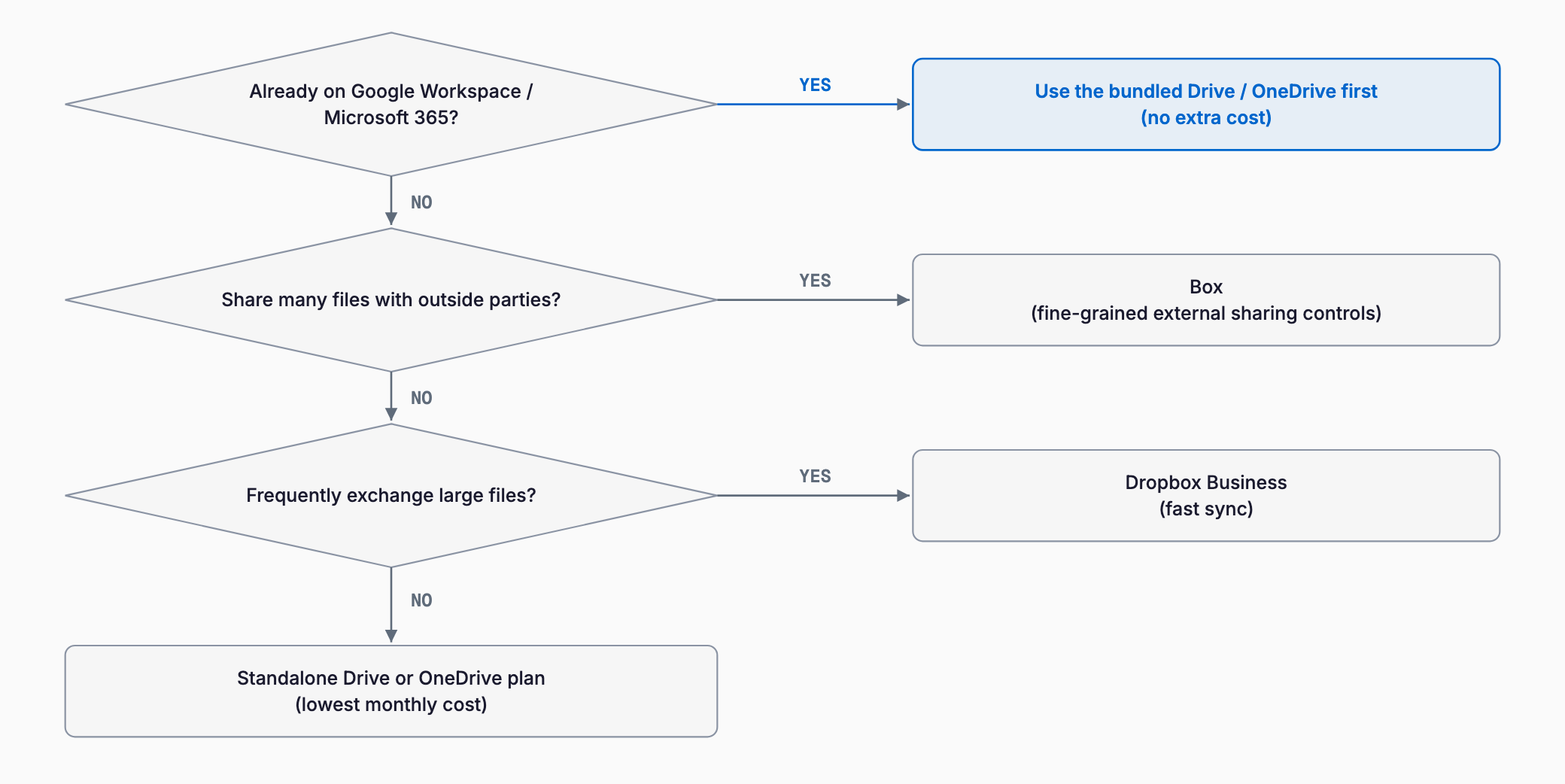
- Already on Google Workspace: use the bundled Google Drive first; shared drives handle department-level control
- Already on Microsoft 365: use the bundled OneDrive/SharePoint first; about 1 TB per user comes at no extra cost
- Lots of sharing with outside parties: consider Box for detailed sharing controls, expiry, download limits, and access history
- Frequent large files: Dropbox Business offers fast sync and easy sharing
- No IT staff: pick a service you already know, with few settings, and only as many rules as you can enforce
- Clients with strict security demands: choose a plan with audit logs, two-factor authentication, and device restrictions
For most small businesses, using up the storage already bundled with Google Workspace or Microsoft 365 is cheaper than adding a dedicated service. Add one only after you find that bundled space or sharing controls fall short. For Microsoft 365 migration costs, see Microsoft 365 migration costs.
Common Failures and Fixes
Setting up online storage is easy, but without operating rules it can raise the risk of leaks. Three failures are especially common in small businesses.
- Unmanaged shared links: links that anyone can open stay active for years after being sent to a client. Make expiring, password-protected links the default and review shared links once a year
- Leftover accounts of departed staff: accounts stay active and files remain synced to personal devices. Suspend the account on the last day and define a data handover process (see the offboarding IT checklist)
- Double management: after moving to the cloud, the old file server or email attachments keep getting edited, and nobody knows which is latest. Make the old environment read-only after migration and close it by a set date
Storing work files in personal accounts, such as a private Dropbox, is another problem. Choose one company service and ban work storage anywhere else from the start.
Migration Steps
When moving from a file server or NAS to online storage, the following steps minimize confusion. Start with one small department rather than switching everyone at once.
1. Inventory: check total volume, folder structure, and who uses which folders
2. Clean up: remove old and duplicate files to reduce what you migrate
3. Select and trial: narrow to one or two candidates and test them in a free trial
4. Design folders and permissions: decide department folders, sharing scope, and administrators
5. Pilot migration: move one department first and check behavior and speed
6. Full migration: upload files and make the old environment read-only
7. Announce rules: explain link handling and personal device use
8. Retire the old environment: close it after a parallel period of about 1 to 3 months
Pre-Adoption Checklist
- Have you checked whether storage bundled with Google Workspace or Microsoft 365 is enough?
- Do you know the needed capacity and user count, and have you priced it using the latest official prices?
- Have you sorted out external sharing frequency and required limits (expiry, passwords)?
- Are you ready to require two-factor authentication for everyone?
- Have you defined account suspension and data handover at departure?
- Have you named a migration owner and a deadline to close the old environment?
- Have you confirmed a backup policy against accidental deletion and ransomware?
- Have you compared first-year and five-year totals including setup costs?
Summary
Business online storage costs about 600 to 3,000 yen per user per month, or roughly 70,000 to 360,000 yen a year for 10 people. These are estimates, so confirm the latest prices on each official site. The cheapest path is to use up the storage bundled with Google Workspace or Microsoft 365; consider Box when external sharing is heavy and Dropbox Business when large files move often.
Operating rules matter more than price: managing shared links, suspending departed users, and avoiding double management. Decide who manages what before choosing the tool.
FAQ
How much does business online storage cost?
Roughly 600 to 3,000 yen per user per month, or about 70,000 to 360,000 yen a year for 10 users. Prices vary by plan and contract, so check each vendor's official site for the latest figures.
If we use Google Workspace or Microsoft 365, do we need separate storage?
For most small businesses the bundled Google Drive or OneDrive/SharePoint is enough. Consider Box or Dropbox Business only if you need detailed external sharing controls or frequent large-file exchange.
Is a NAS or online storage cheaper?
For about 10 users over five years, online storage is often cheaper thanks to low upfront cost. Companies with heavy data or many users may find a NAS cheaper, so compare total cost.
Can we use free personal cloud storage for work?
It is not recommended. Administrators cannot manage permissions or logs, and data leaving with departing staff cannot be prevented. Contract a business plan and ban work files in personal accounts.
Do we still need backups if we use online storage?
Yes. Accidental deletion or ransomware can delete or encrypt synced files. Check trash retention and version history, and back up critical data elsewhere too.
Related free tools (no sign-up, instant results)
Feel free to contact us
Contact Us