PC Data Erasure for Business — Costs, Methods, Certificates
Resetting or deleting files does not erase a PC. Vendors charge roughly 1,000-5,000 yen per device. Compare HDD/SSD methods, costs, certificates, vendor tips.
Data erasure means removing information from PCs and HDDs/SSDs you are about to discard, return, or sell so that no one can recover it. The short answer: emptying the recycle bin, deleting files, or a simple reset does not erase anything. Business-grade erasure through a vendor typically runs about 1,000 to 5,000 yen per device (rough range), plus a 10,000 to 30,000 yen on-site fee if the vendor comes to you. What matters more than the price is getting a per-serial-number data erasure certificate and filing it with your asset ledger.
With Windows 10 support over, many small and midsize companies are replacing PCs right now. The riskiest moment in a refresh is not the new machine but the old one sitting in a storeroom or handed to a disposal vendor. If customer lists, quotes, HR files, or mail history leave the building, the company stays responsible even when disposal was outsourced. This article covers erasure methods, price ranges, what a certificate should contain, an in-house procedure, and a vendor checklist, written for companies without a dedicated IT person. For the wider replacement process see When to replace company PCs, and for the deadline decision see Windows 10 ESU year 2.
Why erasure matters: legal responsibility and real incidents
Japan's Act on the Protection of Personal Information requires businesses that handle personal data to take security management measures. It is generally understood that these cover not only the time a PC is in use but also the disposal stage. When you outsource handling of personal data, the duty to supervise the contractor stays with you. "We handed it to a vendor" is not a defense. For the exact interpretation, check the Personal Information Protection Commission guidelines or a specialist.
Real incidents have happened. In 2019, hard drives that a local government had asked a contractor to dispose of were taken out by an employee of that contractor and resold through an online auction. Because the data had not been reliably erased, buyers could read it. The lesson is that any process where you cannot trace who erased what, where, and how is dangerous, which is exactly why you ask for certificates and work records.
Why reset and delete are not enough
When you delete a file or empty the recycle bin, the system only removes the index entry saying where the file lives. The data itself usually stays on the drive and can often be read back with off-the-shelf recovery software. Windows "Reset this PC" may also amount to little more than that, depending on the options chosen. This applies to both HDDs and SSDs.
- Delete / empty recycle bin: only the index disappears; the data remains
- Folder deletion or quick format: likely still recoverable
- Windows "Reset this PC": choosing "Clean the drive" adds overwriting, but reliability on SSDs depends on the model, and no certificate is produced
- Setting a login password: if the drive is not encrypted, someone can remove it and read it from another PC
Comparing methods: HDDs and SSDs need different answers
The right method depends on the drive type. HDDs store data magnetically on platters, so overwriting and degaussing work. SSDs spread writes around through wear leveling, so an overwrite may leave old data in places the overwrite never touched. For SSDs, the reliable options are cryptographic erase, the manufacturer's built-in erase function (such as Secure Erase), or physical destruction.
| Method | Target | Reliability | Cost (rough) | Reusable |
|---|---|---|---|---|
| OS reset (Reset this PC with drive cleaning) | HDD, SSD | Medium (SSD depends on model; no certificate) | Free | Yes |
| Overwrite software | Mainly HDD | High on HDD; unreliable on SSD | Free to a few thousand yen per device | Yes |
| Cryptographic erase / Secure Erase / vendor tools | Mainly SSD | High when run correctly | Free and up | Yes |
| Degaussing | HDD only | High; does nothing for SSD | A few hundred to a few thousand yen per device via a vendor | No (HDD is damaged) |
| Physical destruction (drilling, shredding) | HDD, SSD | Highest | A few hundred to a few thousand yen per device via a vendor | No |
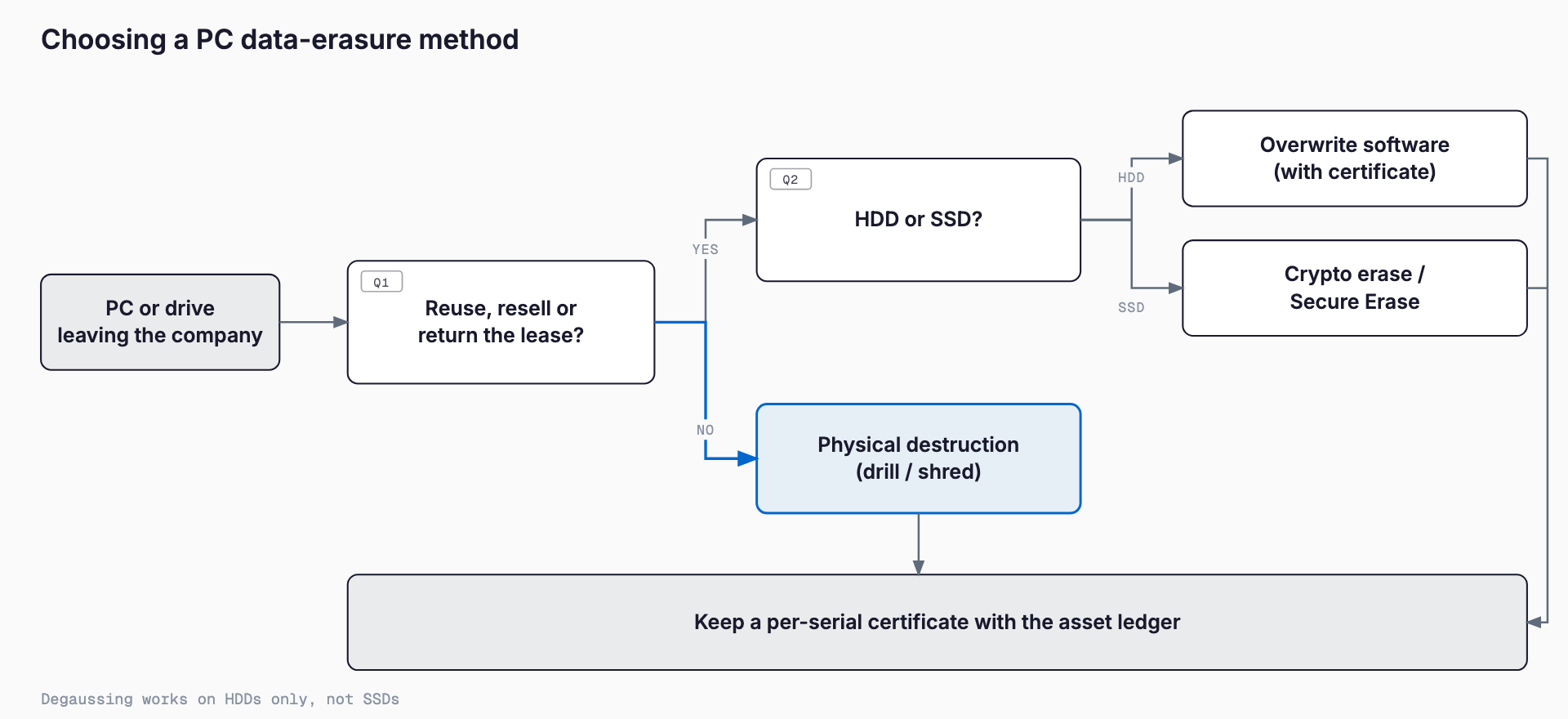
Cryptographic erase works when the data on the drive is already encrypted: you destroy the encryption key, and what remains is unreadable. A drive protected by Windows BitLocker is an example; once the key is gone the contents are meaningless. This only works if BitLocker was on throughout the PC's life. See what to do when asked for a BitLocker recovery key for how to handle recovery keys. Turning encryption on just before disposal does not remove data written earlier, so it is not an adequate last-minute fix.
Standards to know: NIST levels and ADEC certification
NIST SP 800-88 in the United States describes three levels: Clear (not readable by normal operations), Purge (resistant even to laboratory-level recovery), and Destroy (physical destruction). A practical rule: Clear to Purge for devices you will reuse internally, and Purge or Destroy for PCs leaving the company. Business PCs that held personal data or partner confidential information should be at Purge or above before they leave.
In Japan, the Association for Data Erasure Certification (ADEC) runs a program that certifies vendors and software that perform data erasure properly. Whether a vendor is ADEC-certified is an easy signal to check when selecting one. The lack of certification does not automatically mean a vendor is unsuitable, so use it together with the checklist below.
Cost ranges by method
Prices vary with the vendor, volume, region, and method. The figures below are common ranges only; always get quotes from several vendors.
| Method | Rough cost | Notes |
|---|---|---|
| In-house software erasure | Free to a few thousand yen per device, plus labor | Can take hours per device; the challenge is staff time and keeping proof |
| Vendor drop-off or pickup erasure | About 1,000-5,000 yen per device | Varies by drive count and method; may drop for dozens of units |
| On-site erasure or destruction | 10,000-30,000 yen visit fee plus about 2,000-5,000 yen per device | You can watch the work; suited to highly sensitive data |
| Certificate issuance | Free to a few hundred yen per device | Often included in the erasure fee, sometimes charged separately |
| "Free pickup" | Free (offset by resale value) | Always confirm the erasure method and whether you get a certificate |
"Free pickup" works because the components and metals have recycling value that covers the vendor's cost. That is not a problem in itself, but do not hand over devices without clarity on the erasure method and certificate. Even if free, confirm in writing whether a certificate is issued, whether work records are kept, and how data is wiped if units are resold.
Relatively new PCs (roughly within three to four years of purchase) may fetch a buyback price. Decide first who erases the data, the buyer or you. Some vendors net the buyback value against the erasure fee, but check the certificate conditions separately. Also, leased PCs belong to the leasing company, so you cannot dispose of or sell them yourself. The contract usually says who is responsible for erasure at return, so read the return and data erasure clauses first.
What a data erasure certificate should contain
A certificate is the record you use to show a third party that erasure was carried out. If a leak is suspected or a business partner audits you, it is the evidence behind "we did erase it." Check that the one you receive includes the following.
- Device identification: a record for each serial number of the PC or drive (a lump "one batch of PCs" cannot be traced)
- Method: the concrete method, such as overwrite passes, cryptographic erase, or physical destruction, and the standard followed
- Date and place: when and where the work was done
- Operator and approver: the person or company that did the work and who verified it
- Result: success, and what happened if it failed
- Photos or logs: post-destruction photos for destruction, erasure logs for software erasure
Keep the certificate with the records of the disposed PC. Adding "disposal date," "erasure method," and "certificate location" columns to your IT asset ledger saves hunting later. How to build such a ledger is covered in IT asset management for PCs, accounts, and licenses. There may be no legal retention period, but keeping them for a few years after disposal is a safe practice.
The procedure: seven steps before disposal
Settle the sequence in-house so you are not rushing at handover.
1. Confirm targets against the ledger: list the PCs to be discarded or returned with serial numbers, users, and whether they hold data
2. Migrate and back up data: move needed files to the new PC or the cloud and have each user confirm the move
3. Release accounts and licenses: sign out of and release Microsoft 365 licenses, remove the device from Intune or other MDM, and tidy up BitLocker recovery key records
4. Decide the erasure method: choose by HDD vs SSD, reuse plans, and sensitivity (see the comparison table)
5. Select a vendor: compare two or three using the checklist below, with quotes that state quantity and method
6. Erase and obtain certificates: whether by drop-off, pickup, or on-site, keep a handover record and compare certificate entries against the physical devices
7. Update the ledger: record disposal date, method, and certificate location, and revisit license counts
Step 3 is the one people skip. If you discard a PC without releasing it, the license seat stays occupied and the old device lingers in the admin console. Devices not removed from management later throw off your inventory.
Data beyond PCs: phones, copiers, NAS, and more
Many companies stop after the PCs, but data lives elsewhere too. List these during the inventory so they are not forgotten in a refresh or disposal.
- Smartphones and tablets: reset the device and also release the account on the admin side (MDM)
- Multifunction printers and copiers: they contain HDDs or SSDs that retain scanned documents and transmission history; ask for erasure before lease return (see also copier and MFP lease costs)
- NAS and servers: they hold all shared folder data; be clear about how the internal drives are handled
- External HDDs and USB sticks: including those individuals brought in; find out what exists in the office
- Removable media such as SD cards left in laptops: watch for forgotten media
Legal note: business PC disposal is industrial waste
Japan's small home appliance recycling law and the PC recycling program mainly cover items from households. PCs used by a company are generally treated as industrial waste from business activity, and in many cases cannot be put out as municipal bulky waste. You would use a licensed industrial waste handler, a manufacturer's business take-back, or a certified provider. Rules can differ by region and municipality, so confirm the specifics with the vendor or your local office.
For industrial waste, the company that generates it stays responsible through to the contractor. That may mean a written disposal contract and, in some cases, handling a manifest that confirms disposal was completed. It is practical to raise this with the vendor together with data erasure.
Vendor selection checklist
- Can they explain their method for HDDs and SSDs specifically?
- Do they issue a certificate per serial number?
- Where is the work done, and do they subcontract it?
- Is transport locked, and do they keep handover records?
- Do they hold the permits needed for industrial waste collection, transport, and disposal?
- Third-party evaluation such as ADEC certification, Privacy Mark, or ISMS
- Do they offer on-site erasure or let you witness the work?
- Does the quote state quantity, method, certificate, transport, and visit fees?
- Is there a defined process for failed erasures or destroyed drives?
- If resold, is the erasure procedure explained and can you opt out of resale?
Choosing on price alone invites problems such as no certificate or unknown subcontractors. A few hundred yen per device matters less than having records you can show when something goes wrong.
Common mistakes and how to avoid them
- Forgotten spare PCs: old machines pile up in storerooms and are missing from the ledger; find them in an annual inventory
- Missed license release: someone forgets to sign out, and the device stays in the account
- Reusing a leaver's PC: handing it to the next person with the previous data; reset before reassignment
- No certificate: the vendor only said "it's wiped" and there is no record
- No check on lease return: assuming the lessor erases automatically
Frequently asked questions
Is Windows "Reset this PC" enough?
For internal reuse it is a practical option, but for PCs leaving the company it is often not enough. Even with "Clean the drive," reliability on SSDs depends on the model, and no certificate is produced. For PCs that handled customer or HR information, consider a vendor, cryptographic erase, or physical destruction.
Can SSDs be wiped with overwrite software?
SSDs spread writes around, so HDD-style overwriting may leave original data behind. Manufacturer erase tools, cryptographic erase, or physical destruction are the usual choices. Check the manufacturer's information for the method that matches your SSD model.
What does data erasure cost per device?
As a rough guide, vendor drop-off or pickup erasure is about 1,000-5,000 yen per device, and on-site erasure is a 10,000-30,000 yen visit fee plus about 2,000-5,000 yen per device. It varies with volume, method, and region, so compare several quotes.
Is it safe to use a free pickup vendor?
Free is not a problem by itself. But if you cannot confirm the erasure method, a per-serial certificate, and any subcontracting in writing, avoid it. Even when the service is free, responsibility for a leak stays with your company.
Who erases data when I return leased PCs?
It depends on the contract. In many cases the lessee is responsible for erasure before return, though some lessors offer a paid erasure service. Read the return clause in the contract and ask the leasing company if anything is unclear.
Related free tools (no sign-up, instant results)
Feel free to contact us
Contact Us