Business Data Backup — Costs and the 3-2-1 Rule for SMBs
SMB backup basics: the 3-2-1 rule is three copies, two media, one off-site. Sync is not backup. Compare NAS, cloud and HDD costs and budgets by company size.
The core of data backup is the 3-2-1 rule: keep three copies, on two different types of media, with one stored off-site. For a small business, a realistic setup is a daily backup to a NAS plus a second copy in the cloud or on an offline external drive. As a rough guide, a 5-person company spends about 50,000-150,000 yen up front and 3,000-10,000 yen a month; a 50-person company spends about 500,000-1,500,000 yen up front and 30,000-100,000 yen a month (all figures are estimates). Two things matter just as much: file sync is not backup, and you should test a real restore once or twice a year.
Ransomware, hardware failure and accidental deletion all end the same way: the backup is what saves the company. Yet many firms assume 'we use OneDrive' or 'we have a NAS' is enough, and find out too late that they cannot restore. This article covers the typical ways backups fail, the 3-2-1 rule, what to back up, a cost comparison by method, sample budgets by company size, and how to run restore tests, written for companies without a dedicated IT person. For ransomware measures as a whole, see ransomware basics for small businesses; for choosing and pricing a NAS, see NAS file server costs.
Three ways small-business backups fail
Incidents where a backup existed but could not be restored tend to follow the same patterns. Check whether any of them describe your company.
- Sync is mistaken for backup: A OneDrive or Google Drive sync folder deletes the file in the cloud when you delete it on the PC. Files encrypted by ransomware are synced as well. The recycle bin has a limited retention period, and the built-in recovery is not a cure-all
- Data lives only on the NAS: If the NAS breaks, everything is gone. A NAS is also on the office network, so ransomware on one infected PC often encrypts the files on the NAS too
- An external drive stays plugged in: A permanently connected drive suffers the same damage as the PC. If it sits in the same office, fire, theft or flooding takes it too
The common weakness is that a copy that can be reached from the same place with the same permissions shares the original's fate. A backup needs a different location, different credentials, and ideally a different mechanism.
Sync versus backup
They look alike but have opposite goals. Sync keeps every device in the same latest state. Backup lets you return to an earlier point in time. Because sync spreads changes instantly, an accidental deletion or encryption spreads instantly too. A backup keeps older versions, which is why you can go back.
| Item | Sync (OneDrive etc., default) | Backup |
|---|---|---|
| Purpose | Same state on many devices | Return to a past state |
| Deletion | Deleted everywhere | Kept in earlier versions |
| Ransomware | Encrypted files get synced | Restore from pre-encryption version |
| Retention | Short (recycle bin period) | Months to years, by setting |
| Separate credentials | Usually the same account | Can be isolated |
Microsoft 365 and Google Workspace do offer recycle bins and version history. They help with everyday mistakes, but not with long-term retention or with a fully compromised account. We return to this in the FAQ below.
The basic rule: 3-2-1
The standard design principle is the 3-2-1 rule:
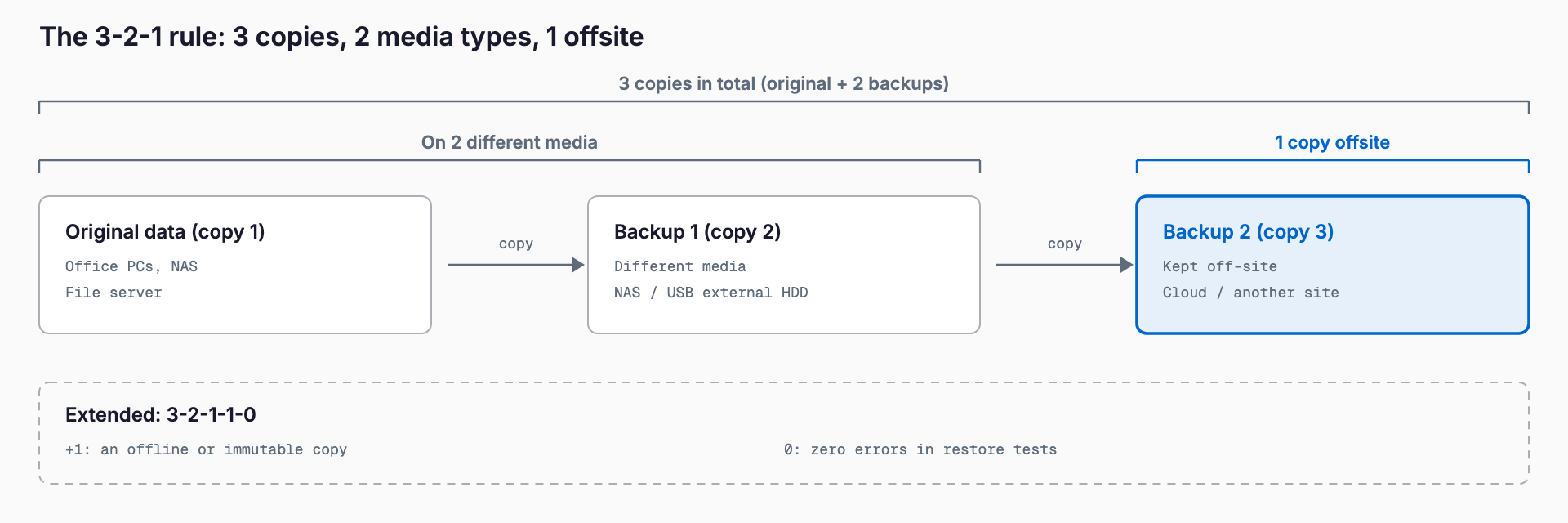
- 3: Keep three copies (the live data plus two backups)
- 2: Use at least two different kinds of media (for example NAS and cloud)
- 1: Keep one copy off-site or in another location (fire, theft, flood)
Many guides now add a ransomware layer, called 3-2-1-1-0. The extra '1' is one copy that is offline or immutable (cannot be altered or deleted), and the '0' means zero errors in restore tests. Attackers go after backups too, so a copy that remains safe even if they obtain administrator rights is the last line of defense.
| Example setup | Meets 3-2-1? | Weakness |
|---|---|---|
| PC + one external drive (always connected) | No | Same place, same damage |
| PC + NAS + external drive (same office) | Two media, nothing off-site | Weak against fire or theft |
| Server + NAS + cloud | Yes | Risky if the cloud uses the same admin account |
| Server + NAS + cloud (immutable) + offline drive | Meets 3-2-1-1 | More work and cost |
What should you back up?
Ideally everything, but cost and effort are limited. Start with what stops the business if it is down and what cannot be recreated if lost.
| Target | Examples | Note |
|---|---|---|
| File server / NAS | Quotes, contracts, drawings, photos | Top priority. Select by shared folder |
| Accounting / sales databases | Accounting, sales, CRM software | Plain file copies can be saved in a broken state. Use the software's own backup function |
| Microsoft 365 / Google Workspace | Mail, OneDrive, SharePoint, Drive | Data in the service is still your responsibility. Consider a dedicated backup |
| PC personal folders | Desktop, Documents | Best handled by moving work to shared folders |
| Business-system servers | In-house systems, internal web apps | VM-level backups, database dumps |
| Configuration | Router, VPN, NAS settings, license keys | Surprisingly painful to lose. Keep a register stored elsewhere |
The easiest items to overlook are configuration and cloud data. Router settings and license keys are only missed when a device dies and no copy exists. Cloud mail and storage are often assumed to be protected automatically, but what the provider protects is service availability, not loss caused by your own deletions or a hijacked account.
Methods compared, with cost estimates
Here is a comparison of the main approaches. Prices are market-based estimates and vary a lot with capacity, device count and vendor.
| Method | Initial cost | Monthly cost | Strength | Weakness |
|---|---|---|---|---|
| Rotating external HDDs | 10,000-30,000 yen | 0 yen | Cheap; can be offline | Needs a person to swap; easy to forget |
| NAS + USB HDD | 80,000-250,000 yen | 0 yen | Easy to automate; fast local restore | Same office; weak to fire and theft |
| NAS to cloud (remote copy) | 100,000-300,000 yen | 3,000-30,000 yen | Easily satisfies 3-2-1 | Bandwidth and capacity fees; slow first upload |
| Cloud backup service (PCs and servers) | 0-100,000 yen | 10,000-100,000 yen (by devices and capacity) | Easy to outsource; versioning built in | Ongoing cost; needs vendor selection |
| Dedicated M365 / Workspace backup | 0 yen | Several hundred to about 1,000 yen per user | Mail and shared files kept separately | Cost grows with users |
For NAS prices and selection, see NAS file server costs; for cloud replication and wider continuity planning, see cloud backup and disaster recovery. Cloud storage pricing is compared in online storage costs.
Sample budgets by company size
Here are example configurations, assuming roughly 500 GB of files for 5 people, 2 TB for 20 and 5 TB for 50.
| Size | Example setup | Initial cost | Monthly cost |
|---|---|---|---|
| 5 staff (about 500 GB) | Small mirrored NAS + nightly cloud copy + M365 backup | 50,000-150,000 yen | 3,000-10,000 yen |
| 20 staff (about 2 TB) | RAID NAS + cloud backup + monthly offline HDD + M365 backup | 200,000-600,000 yen | 10,000-40,000 yen |
| 50 staff (about 5 TB) | Dedicated backup appliance + immutable cloud + dedicated M365 backup + monitoring | 500,000-1,500,000 yen | 30,000-100,000 yen |
Cloud cost generally grows with capacity multiplied by retention. Too many versions drive the bill up, so decide retention first, as described next.
Versions and retention: RPO and RTO in plain terms
Only two terms are needed. RPO (recovery point objective) is how far back in time you can afford to go: with daily backups you may lose up to one day of data. RTO (recovery time objective) is how fast you need to be running again. Decide both for each business function.
| Function | RPO guide | RTO guide | Backup frequency |
|---|---|---|---|
| Orders and accounting data | Within 1 day | Half a day to 1 day | Daily (after hours) |
| Shared files (quotes, contracts) | Within 1 day | 1-2 days | Daily |
| Old project files, photos | 1 week | A few days | Weekly may do |
| Within 1 day | Half a day | Daily (dedicated backup) |
Versioning means keeping several points in time rather than overwriting. A common pattern is 14 days of dailies, 8 weeks of weeklies and 12 months of monthlies. Ransomware can sit unnoticed for days or weeks, so with too few versions every copy may already be encrypted by the time you notice. Documents with legal retention duties, such as accounting books, should be handled by a separate records policy rather than by backups.
Run a restore test twice a year
A backup is only worth something if you can restore from it. In practice, backups often fail silently for months, the password is lost, or recovery takes three times longer than planned. Put a restore test on the calendar twice a year.
- Restore a sample folder (10-20 files) to a different location and open the files
- For accounting and sales software, start the application with the restored data
- Record how long restoration took and compare with your RTO
- Confirm that passwords, encryption keys and the procedure are stored on paper or elsewhere
- Log the date and result, and for failures the cause and the fix
Ransomware essentials
Ransomware may look for backups on the network and delete them. Three points protect the backups.
- Offline: Connect the external drive or tape only while backing up, then disconnect and store it. A drive that is unplugged cannot be infected
- Separate account and permissions: Use a backup admin account distinct from the daily administrator, with multi-factor authentication on. Do not reuse passwords
- Immutable storage: A setting that prevents even administrators from deleting data during the retention period. Cloud storage and backup products offer it under names such as object lock or ransomware protection
A NAS shared as an ordinary network folder is dangerous, because an infected PC can write to it. Ideally the backup NAS should be invisible to anything other than the backup software.
Operational pitfalls that are easy to miss
Even with the right devices and contracts, operations often break down. Four patterns are typical. First, failure notices reach nobody: error emails going to a former employee's address are not unusual. Send alerts to a shared mailbox, not a person, and add a review step for staff changes. Second, the storage fills up and backups stop: data grows every year, so plan an expansion or cleanup when usage passes about 70 percent. Third, gaps when PCs are replaced: a new PC is never added, and only the old machine keeps being backed up. Fourth, only one person knows the passwords: if that person is away or leaves, nobody can restore. More than one person should know who runs the backup and where the procedure document is kept.
Outsourcing: cost and what to check
If you outsource operations, a rough range is 100,000-500,000 yen for setup and 10,000-50,000 yen a month for operation and monitoring (estimates). Check the following before signing.
- Is there a written list of what is backed up?
- Retention period, number of versions, and cost of adding more
- Time from restore request to completion (is the RTO guaranteed?)
- Does the vendor run regular restore tests and report the results?
- Where is the data stored (in Japan, which data center)?
- On cancellation, is your data returned and is deletion certified?
- Do you hold an admin account yourself, rather than relying wholly on the vendor?
- Contact route in an incident, and weekend or night support
Pre-launch checklist
- Listed what to protect in four groups: files, databases, mail, configuration
- Decided how far back each business function can afford to go (RPO)
- Secured the off-site copy required by 3-2-1
- At least one copy is offline or immutable
- Backup admin account is separate from the daily admin, with multi-factor authentication
- Decided the number of versions and retention period
- Backups run automatically and failures send a notification
- Scheduled restore tests twice a year
- Stored restore procedures, passwords and keys on paper or elsewhere
- Assigned someone to review targets when staff leave or devices change
Frequently asked questions
Do I need a backup for Microsoft 365 or Google Workspace too?
In many cases, yes. The provider protects against its own hardware failures, but not indefinitely against user deletions, a departed employee's deleted account, account takeover, or ransomware that has synced. Built-in recovery periods are limited. If mail and shared files are central to your work, a per-user dedicated backup, roughly a few hundred to about 1,000 yen per user per month (estimate), is worth considering.
Is an external hard drive enough?
It is a valid minimum for a very small company, but not enough on its own. Its strength is that it can be kept offline. If it stays plugged in it shares infection and failure, and if it stays in the office it shares fire and theft. Rotating two drives weekly and taking one off-site, or combining it with the cloud, brings you closer to 3-2-1.
How many years should I keep data?
For backups, a common pattern is dailies for two weeks, weeklies for two months and monthlies for a year. Records with legal or contractual retention, such as books and contracts, are a records-management matter rather than a backup matter. Ask your tax accountant or labor consultant about retention periods.
Is cloud backup safe?
Properly configured, it is usually safer than on-site devices alone, but it depends on configuration. Check multi-factor authentication on admin accounts, an account separate from daily work, immutable (undeletable) settings, and encryption in transit and at rest. Also note that fees grow with capacity and that restoring large data sets takes time over your internet line.
How can I keep costs down?
Narrowing the scope helps most: separate business-critical data from old material, and send the old material to cheaper, less frequent storage. Do not keep more versions than needed. Size devices for about five years of use without overbuying, and compare capacity-based and device-based pricing for cloud services. And do not skip restore tests: a cheap backup that cannot restore is the most expensive kind.
Related free tools (no sign-up, instant results)
Feel free to contact us
Contact Us