Windows Server 2016 End of Support: SMB Options & Costs
Windows Server 2016 support ends Jan 12, 2027. SMB options: new server (800K-2M yen), NAS, Microsoft 365 or Azure VM. Costs, schedule, checklist and mistakes.
Windows Server 2016 reaches the end of extended support on January 12, 2027, after which Microsoft no longer provides security updates. For a small or midsize business without dedicated IT staff, rough replacement costs are about 800,000 to 2 million yen for a new server, 100,000 to 500,000 yen for a NAS, and 300,000 to 1 million yen up front plus monthly fees for cloud migration. With about three months left, the realistic approach is to inventory your servers this month and decide on a destination by November.
This article walks through what to check, which options exist, and what they cost for companies that have been running an on-premises Windows Server 2016 as a file server, an Active Directory domain controller, or a host for accounting and sales management packages. We keep jargon to a minimum so that business owners can use it in discussions with staff and vendors. For a broader view of end-of-life planning, see our end-of-life (EOL) preparation guide.
What the end of Windows Server 2016 support means
Windows Server has two support phases: mainstream support and extended support. Mainstream support for Windows Server 2016 already ended on January 11, 2022, and the server is now in extended support, which ends on January 12, 2027.
Once extended support ends, newly discovered vulnerabilities are no longer patched. The server does not suddenly stop working; it keeps running as it does today. But known holes stay open for attackers. Ransomware, which encrypts data and demands payment, often spreads precisely through unpatched holes in old servers.
An unsupported OS can also hurt you in other ways: answering customers' security questionnaires, meeting cyber insurance requirements, and passing certification audits can become harder. The real business risk is that you can no longer say "it works, so it's fine."
What to check first: a server inventory checklist
Before choosing a destination, you need an accurate picture of what you have. Even an office manager doubling as the IT person can sharply improve the quality of quotes by filling in the items below.
- Number and location: how many Windows Server 2016 machines, and whether each is physical or virtual (Hyper-V, etc.)
- Roles: file sharing, domain controller, printer sharing, database, business application host, and so on
- Users and devices: how many people and PCs connect (this directly drives the number of CALs)
- Application compatibility: whether your accounting, sales management, attendance, or CAD software supports the new Windows Server. Ask the vendor
- Data volume: total size of shared folders and how much is actually in active use
- Internet exposure: any function directly reachable from the internet, such as Remote Desktop or VPN
- Hardware age: purchase date, maintenance contract, disk health
- Backups: what is backed up, where, how often, and whether a restore has ever been tested
- Contracts and licenses: OS license type, CALs, expiry of application maintenance contracts
- External connections: site-to-site VPN, integrations with partners' systems, and scan-to-folder destinations on copiers
Two things are easy to miss: software that only runs on this particular server, and copiers whose scan-to-folder destination is a shared folder on the server. Many companies only notice after replacement, when scanned documents stop being saved.
Migration options and cost estimates
Migration options fall into four broad groups. The best fit depends on company size, the business software you use, and whether you have anyone who manages IT. Costs are rough guides and vary with the number of servers, data volume, and vendor.
| Option | Best for | Initial cost (guide) | Monthly (guide) | Watch out for |
|---|---|---|---|---|
| New server + Windows Server 2025 | Companies of 10-30 users whose business software runs on the server and who want to keep domain management | 800,000-2,000,000 yen (hardware, license, CALs, setup) | Maintenance contract extra if desired | Another refresh in 5-7 years; application compatibility must be confirmed |
| Replace with a NAS | Mainly file sharing, few other server roles | 100,000-500,000 yen | Almost none (maintenance and backup extra) | Not a replacement for Active Directory (user management); design access rights carefully |
| Microsoft 365 (SharePoint/OneDrive) + Entra ID | Remote or mobile staff; wanting to reduce server management | Migration work 200,000-800,000 yen; AD to Entra ID 300,000-1,000,000 yen | From about 2,000 yen per user | Legacy or intranet-only applications need separate handling; operating rules must be redesigned |
| Cloud VM (e.g., Azure VM) | Must keep running a legacy application but do not want hardware on site | Migration 300,000-1,000,000 yen | 20,000-100,000 yen | Monthly cost continues as long as you use it; connection design (VPN, etc.) required |
There is rarely a single right answer. A combination is common, such as moving file sharing to Microsoft 365 while leaving only the accounting software on a small new server or a cloud VM.
Option 1: A new physical server with Windows Server 2025
The smallest change is to install Windows Server 2025 on a new server machine and move data and settings over. This is a realistic choice for companies whose business package assumes it runs on an in-house server. For 10-30 users, hardware, the Windows Server 2025 license, CALs (client access licenses), and setup together typically run about 800,000 to 2 million yen.
Two points deserve attention. First, upgrading the OS in place on the old server is hard to recommend: hardware bought around the time Windows Server 2016 launched is likely 8 or more years old, and disk and power-supply failure risks are rising. A new OS on failing hardware does not help. Second, you must buy CALs for the new version; CALs for the older version will not let clients connect to the new server. You need as many as your users or devices require.
The key cost questions are how many years you will use it and how you will maintain it. Physical servers need replacing again in 5-7 years, so the annual cost can end up close to the cloud. If your server is mostly a file server, our NAS vs. file server cost comparison may also help.
Option 2: File sharing on a NAS or cloud, identity on Entra ID
If the server mainly does file sharing, replacing it with a NAS is the cheapest route, at roughly 100,000 to 500,000 yen depending on capacity and redundancy (protecting data across two or more disks). Note that a NAS does not replace a Windows domain (Active Directory). Companies that need fine-grained per-user access control should plan the design carefully.
Going a step further, you can move file sharing to Microsoft 365 SharePoint and OneDrive (or Google Drive) and user management to Microsoft Entra ID (formerly Azure AD, cloud-based user management). Then you no longer need a server on site. A typical guide is 200,000-800,000 yen for initial migration work, 300,000-1,000,000 yen for AD to Entra ID migration, and licensing from about 2,000 yen per user per month. The benefits are access from home or on the road, no server maintenance, and built-in backup and version history. Details on process and cost are in our Microsoft 365 migration cost guide.
The downsides are the ongoing monthly cost, the need to rethink folder structures, and the possibility that older applications that expect a network drive will not work. If your accounting software saves data to a fixed shared folder on the server, that part needs separate handling.
Option 3: Move to a cloud VM (Azure VM, etc.)
If your business software only runs on a particular Windows Server, you can run the server itself as a virtual machine (VM) in the cloud. You no longer keep hardware on site, and hardware failure risk drops. A rough guide is 300,000-1,000,000 yen for migration and 20,000-100,000 yen per month.
Azure sometimes offers Extended Security Updates (ESU) for older Windows Server versions when they run on Azure. For Windows Server 2016, Microsoft may offer paid ESU, but availability, terms, and pricing can change, so please confirm the current situation with Microsoft or a reseller. ESU only buys time; eventually you still need to move to a supported OS.
Cautions: the monthly cost continues for as long as you use it, you must design how office PCs connect (VPN, etc.), and slow connections can make business software sluggish. It is wise to test on a small scale first.
If you cannot finish in time: stop-gap measures
Even if migration will not be complete by January 2027, reducing risk is better than doing nothing. All of the following are bridges to migration, not permanent fixes.
- Stop direct internet access: close published Remote Desktop and router port forwarding first
- Segment the network: place the old server in a network separated from regular PCs and the internet (VLAN, etc.)
- Turn off what you do not use: disable unused services, shares, and accounts
- Strengthen backups: keep regular copies somewhere isolated from the network (external disk, another site, cloud) and confirm you can restore
- Review administrator accounts: stop reusing passwords and remove unnecessary admin rights
- Confirm maintenance and contacts: know who to call and when if the hardware fails
Even with these in place, the fact remains that newly found vulnerabilities will not be fixed. Keep looking for ways to pull the migration date forward.
Schedule: working backwards from January 12, 2027
Today (October 5, 2026), about three months remain. Hardware can take several weeks to arrive, so the sooner you decide, the better. A suggested schedule:
| Timing | Task | Point |
|---|---|---|
| Early to mid October | Inventory (servers, roles, users, business software) | Ask software vendors about new-OS support at the same time |
| Late October to early November | Decide destination, collect quotes | Get 2-3 quotes with the same assumptions (servers, data volume) |
| Early to mid November | Order hardware, licenses, CALs | Check lead times; year-end is busy |
| Mid November to early December | Build and test | Try business software, copiers, printers, and backups end to end |
| Mid December | Production cutover (holiday or night) | Keep the old server powered on so you can go back quickly |
| Late December to early January | Verification and buffer | Leave room to handle problems over the holidays |
| January 12, 2027 | Support ends | Shut down and wipe, or isolate the old server |
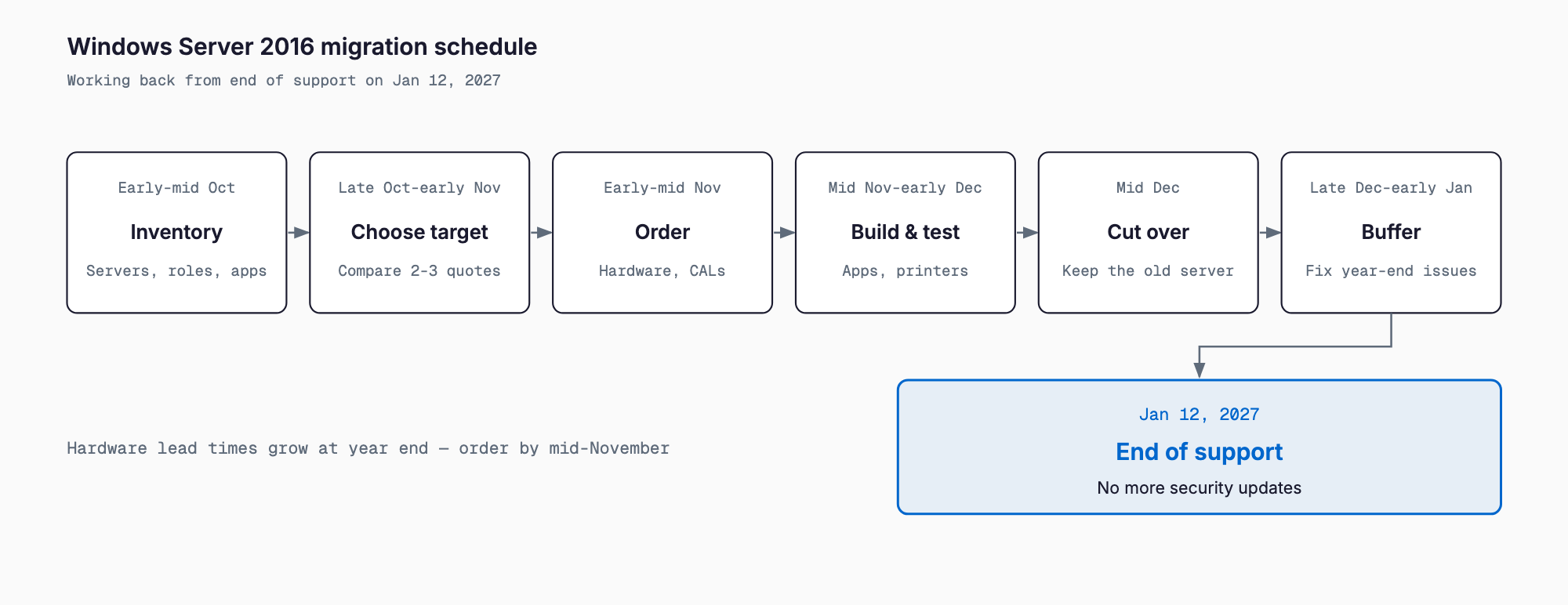
Vendors are less available around the New Year. Finishing the cutover in December and using January as a buffer is the safest plan. If you have integrations with partners or inventory systems, start even earlier.
Common failure patterns
- Postponing the compatibility check: the software does not run on the new OS and you face a replacement or large extra costs
- Miscounting CALs: confusing user and device counts leads to shortages or over-buying
- Quotes that omit data migration and setup: comparing only hardware prices leads to surprise extra charges
- Starting without a backup: a problem during migration loses data
- Forgetting scan-to-folder, printer, and shared-folder connections: staff flood the help desk after cutover
- Forgetting to wipe data when disposing of the old server: a cause of information leaks
- Putting it off because it still works: panic after a ransomware incident
Most failures come not from technical difficulty but from missed checks and running out of time. For general thinking about end-of-support preparation, see also the EOL preparation guide.
Frequently asked questions
Does Windows Server 2016 stop working right after January 12, 2027?
No. The server keeps running as before, but security updates for new vulnerabilities are no longer provided, so the risk of infection and unauthorized access gradually increases.
Can I just upgrade the OS on my current server to Windows Server 2025?
It may be technically possible, but hardware that is 8 or more years old carries a high failure risk and may not meet the new OS requirements. In most cases a new server is safer and lasts longer.
Can I keep using it after support ends with ESU (Extended Security Updates)?
Microsoft may offer paid ESU, but availability, terms, and pricing can change. Please check the current situation with Microsoft or a reseller. Even if available, it only buys time, and you eventually need to move to a supported OS.
Which option is cheapest for a company of about 10 people?
If file sharing is the main use, a NAS (100,000-500,000 yen) is usually cheapest, but it depends on domain management and application requirements. If you have few users and some remote work, Microsoft 365 is also a strong candidate. Compare total cost over five years, including the ongoing monthly fees.
Do I need to buy new CALs (client access licenses)?
Yes. A new version of Windows Server requires CALs of that version or later. The number depends on whether you license per user or per device, so confirm it during the inventory.
If we cannot finish in time, what is the minimum we should do?
Prioritize three things: stop direct internet access, isolate the server from other networks, and keep backups in a separate location and confirm they can be restored. These are only stop-gaps, and you still need to keep the migration moving.
Related free tools (no sign-up, instant results)
Feel free to contact us
Contact Us