Windows 10 ESU Year 2 ($122/PC): Should SMBs Keep Going?
Windows 10 ESU year 2 starts Oct 14, 2026 at about $122 per PC (estimate); skipping year 1 means $183. Extend only PCs stuck on Windows 10; replace the rest.
Windows 10 ESU (Extended Security Updates) is a paid program that keeps delivering security-only updates to Windows 10 after its support ended. For businesses, year 1 ends on October 13, 2026 and year 2 starts on October 14. In short: buy year 2 (about $122 per device, an estimate) only for PCs that cannot move to Windows 11 because of dedicated equipment or legacy software, and replace PCs that are due for renewal instead of paying for ESU.
Regular Windows 10 support ended on October 14, 2025, so only companies that pay now receive updates. If you bought year 1 and do nothing, updates stop arriving after October 2026. This article walks through the year-2 cost, how to decide which PCs to cover, the risks of staying on Windows 10, and a migration plan, in terms a company without a dedicated IT team can discuss internally. For the server side, see also Windows Server 2016 end-of-support planning.
Bottom line: year 2 is a last resort for buying time, not the default
ESU exists to buy time before migration. Year 2 costs double year 1 and year 3 doubles again, so the longer you stay, the faster the per-device burden grows. It also delivers security updates only: no new features, no non-security fixes, and no technical support from Microsoft.
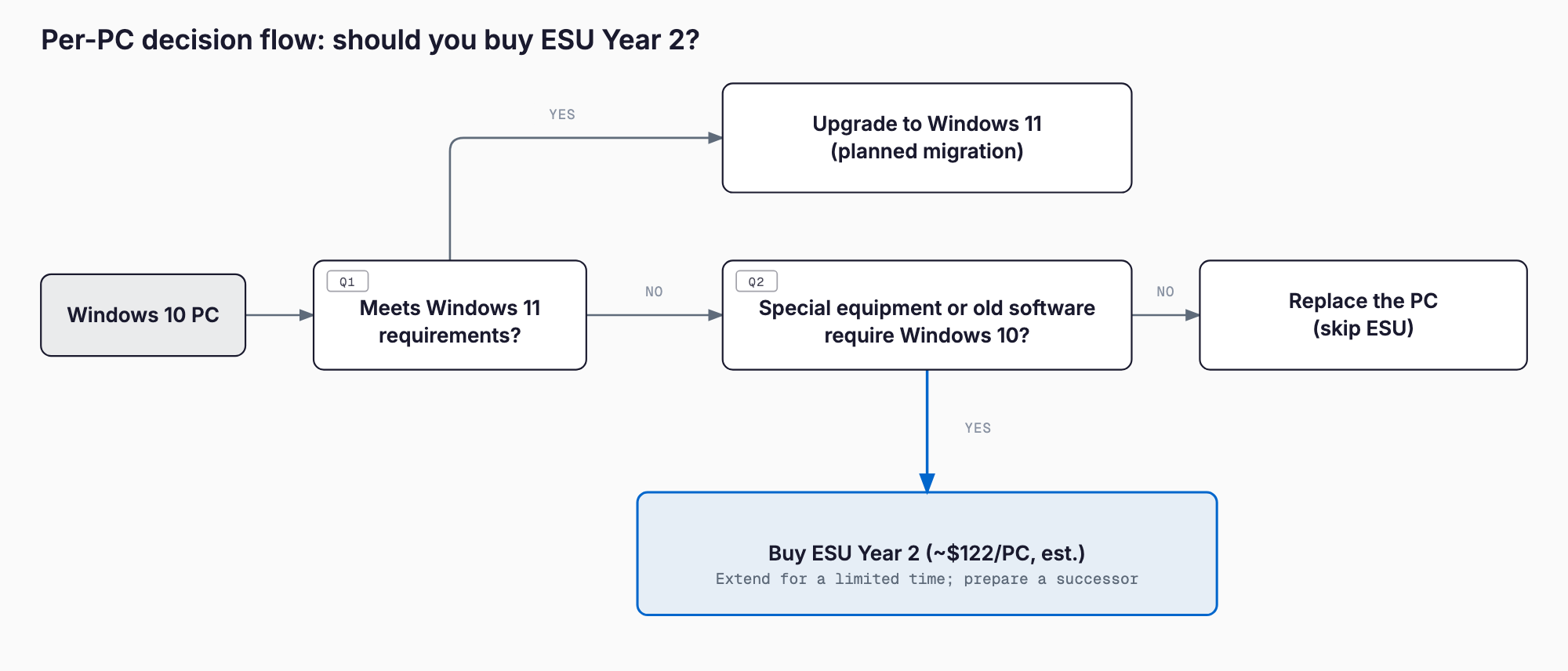
The decision therefore comes down to two paths. PCs that can run Windows 11 should be replaced or upgraded on a plan, without waiting for year 2. PCs that cannot move (tied to dedicated equipment or old business software) get year 2 as a time-boxed bridge while you prepare a successor. Buying ESU for every PC just to feel safe is usually the most expensive option.
Year-2 cost: $122 per device (estimate), $244 in year 3
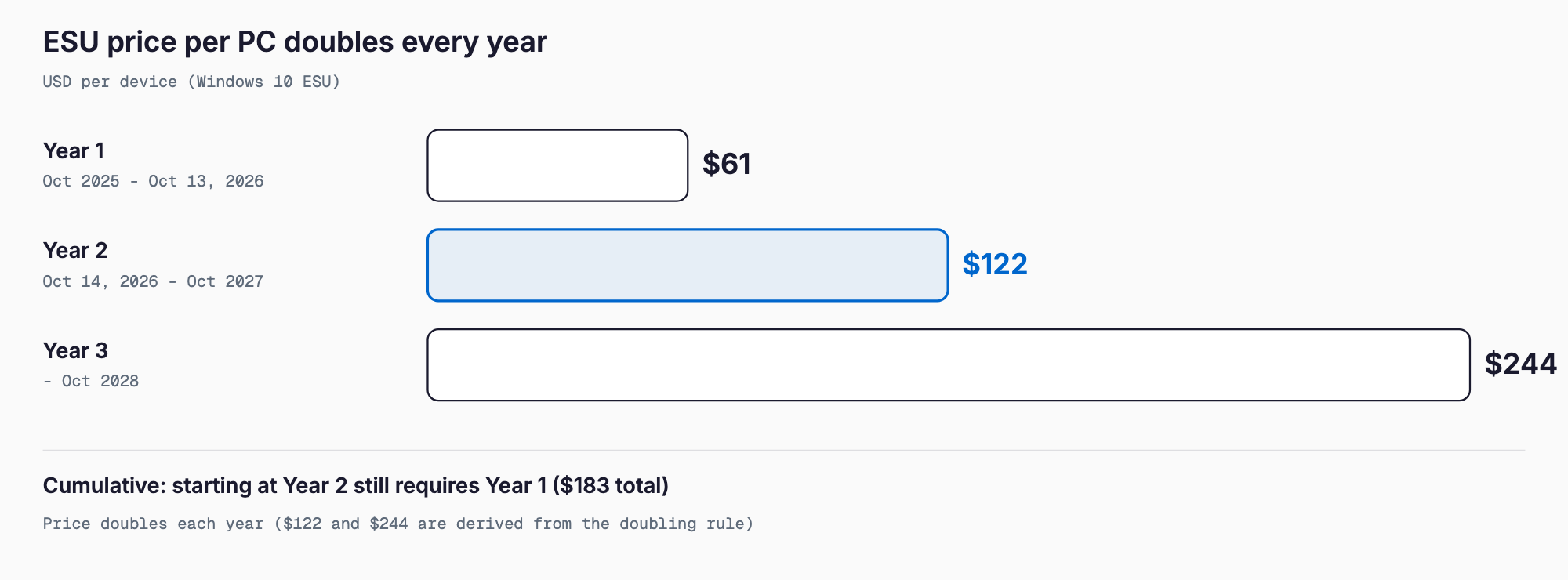
Microsoft's list price for business ESU is $61 per device in year 1. The price doubles every year, which gives $122 for year 2 and $244 for year 3. Note that the year-2 and year-3 figures are derived from the published "doubles each year" rule, and yen prices vary by reseller and exchange rate, so get a quote before buying. ESU runs for at most three years (until October 2028) and cannot be extended beyond that.
| Year | Period | Price per device (list) | Cumulative per device |
|---|---|---|---|
| Year 1 | Oct 2025 – Oct 13, 2026 | $61 | $61 |
| Year 2 | Oct 14, 2026 – Oct 2027 | $122 | $183 |
| Year 3 (final) | Oct 2027 – Oct 2028 | $244 | $427 |
Here is what that means by fleet size. The dollar figures are simple multiples of the list price; the yen column is only an illustration assuming 1 USD = 150 yen, and real yen prices will differ.
| Company size | Year 2 only (USD) | Years 1+2 (USD) | Years 1+2 (yen, at 150 per USD, estimate) |
|---|---|---|---|
| 10 PCs | $1,220 | $1,830 | about 270,000 yen |
| 30 PCs | $3,660 | $5,490 | about 820,000 yen |
Two points are easy to miss. First, ESU is cumulative: you cannot buy year 2 alone. A company that skipped year 1 and starts now pays the combined $183 per device. Second, enrollment does not renew automatically. If you do not purchase year 2, security updates stop after October 2026, and updates missed in the gap cannot be recovered later.
How to buy, and the exceptions that cost less or nothing
Business ESU is purchased through Microsoft volume licensing or CSP (Cloud Solution Provider) partners. The consumer ESU (October 15, 2025 – October 13, 2026) does not apply to business use, so you cannot use it for company PCs.
Eligible devices must be running Windows 10 version 22H2. A PC left on an older version has to be updated to 22H2 first.
- Discount for cloud update management: devices managed through cloud update management such as Intune or Windows Autopatch reportedly received a discount in year 1 (25%, $45). A year-2 discount is not confirmed, so ask your reseller before budgeting
- Windows 10 on Windows 365 or Azure Virtual Desktop: Windows 10 running as a cloud PC receives ESU at no extra cost, so no separate purchase is needed
- Limited scope: only critical and important security updates; no new features, no non-security fixes, no technical support
Decision criteria: which PCs get year 2, and which get replaced
Sort each PC by two questions: can it run Windows 11, and by when can it be replaced? The table below gives a quick way to apply your inventory results.
| PC situation | Recommendation | Reason |
|---|---|---|
| 5+ years old, or fails Windows 11 requirements | Replace | The ESU spend is money toward a new PC; extending does not fix performance or failure risk |
| Can run Windows 11 but updates have not caught up | Upgrade or replace before the deadline | Spending time on migration is cheaper than paying ESU |
| Tied to dedicated equipment or legacy software on Windows 10 | Buy year 2 as a bridge | A successor takes time; set an end date (Oct 2027) and prepare in parallel |
| Replacement within the year is already scheduled | Buy year 2 | Cheaper than rushing a purchase for a few months |
| Rarely used or spare shared PC | Retire or repurpose | Little point paying update fees for an unused PC |
Cost comparison: two years of ESU vs. replacement
Per device, years 1+2 of ESU total $183 (about 27,450 yen at 150 per USD, an estimate) and $427 (about 64,050 yen) if you go through year 3. A standard business laptop is about 120,000–180,000 yen for the unit alone, with setup labor on top. For price ranges and purchasing options, see when to replace company PCs.
On paper, ESU is far cheaper than replacement. But that comparison assumes you already have a destination. After paying, the PC is still aging, year 3 costs double year 2, and there is no extension after October 2028. ESU does not reduce replacement costs; it postpones them. A simple rule of thumb:
- Planned remaining use under one year: year-2 ESU is cheaper than buying a new PC early
- Planned remaining use of two years or more: replacing usually wins over the cumulative $427 of years 1–3, since you also get new warranty and performance
- Old, failure-prone PCs (5+ years): ESU does nothing to reduce downtime or recovery effort when they fail
- PCs connected to dedicated equipment: check the equipment maker's supported OS and successor models first
Risks of using Windows 10 without ESU
If you do not buy ESU, PCs do not stop working in October 2026. The problem is that fixes for newly discovered vulnerabilities no longer arrive, so you keep running daily operations with unpatched holes.
- Ransomware and similar attacks: unpatched flaws in old operating systems are an easy entry point. If data is encrypted, expect downtime plus recovery cost and effort
- Customer security questionnaires: partners often ask whether you use unsupported operating systems. Being unable to answer, or answering yes, may affect business terms
- Cyber insurance terms: some insurers treat unsupported operating systems as a factor in eligibility or claims. Check your policy wording
- Spread to other devices: one infected PC can reach other PCs and servers over the internal network
- Software dropping support: over time, browsers and business software stop supporting Windows 10 and more things break
ESU does not guarantee complete safety, but known serious vulnerabilities continue to be handled. Conversely, a PC with neither ESU nor a replacement plan becomes the weakest point in your network. Dealing with this starts with knowing which PC runs which OS, as described in getting started with IT asset management.
Migration plan: seven steps
The year-2 period is about one year. Rather than just extending, use it to replace PCs in an orderly way. Even a company where IT is a side duty can follow these steps.
1. Inventory Windows 10 PCs: list count, purchase year, make and model, user, and location. Without this, neither the budget nor the ESU quantity can be fixed
2. Check Windows 11 compatibility: run Microsoft's PC Health Check app on each PC. Those that fail become replacement candidates
3. List legacy apps and equipment: ask the software or equipment vendor whether it works on Windows 11. Anything that cannot be supported is a reason to buy ESU
4. Sort PCs into three groups: upgrade, replace, or extend with ESU. Write an end date next to every extended PC
5. Set the budget: estimate replacement, ESU, and kitting (initial setup) separately. For cost ranges see PC kitting costs
6. Replace in phases: do not swap everything at once. Start with the oldest, most failure-prone PCs, avoid busy seasons, and set monthly quotas
7. Migrate data and dispose of old PCs: record data transfer, backup, data erasure, and disposal for each PC
Checklist before buying year 2
- Target PCs are on Windows 10 22H2
- You know whether year 1 was purchased, and understand that year 1 must also be paid if not
- The purchase quantity is limited to PCs that truly need to be extended
- You obtained a yen quote and checked the exchange rate and expiry date
- You decided the purchase channel (volume licensing reseller or CSP) and how licenses will be managed
- Each extended PC has a deadline for moving to its successor (October 2027 is one natural cutoff)
- You checked whether partners or insurers have requirements about OS support status
- For PCs without ESU, you decided whether to stop using them or isolate them from the network
Common mistakes
- Buying ESU for every PC: paying for PCs that should be replaced anyway inflates costs
- Assuming you can start at year 2: ESU is cumulative and year 2 cannot be bought alone
- Missing the deadline: enrollment does not auto-renew, so panic sets in after October 2026
- Not counting devices: spare PCs and machines left by former employees make the inventory disagree with reality
- No end date for the extension: you drift into paying $244 in year 3 and hit the final October 2028 wall
FAQ
How much is Windows 10 ESU year 2?
The business list price is $122 per device (an estimate), derived from year 1 at $61 doubling each year. Yen prices vary by reseller and exchange rate, so request a quote before purchasing.
Can I buy year 2 if I did not buy year 1?
No. ESU is cumulative, so you cannot buy year 2 alone. Starting now means paying years 1 and 2 together, $183 per device.
What happens if I keep using Windows 10 after October 2026 without ESU?
The PC keeps running, but fixes for newly found vulnerabilities stop arriving. That raises exposure to ransomware and can put you at a disadvantage in partner security checks and cyber insurance terms.
Do I need to buy ESU if I run Windows 10 as a cloud PC?
Windows 10 running on Windows 365 or Azure Virtual Desktop receives ESU at no extra cost. If it runs on your own PC, you need to purchase it.
Summary
ESU year 2 is a way to protect PCs that cannot move to Windows 11 for a limited time, not something to buy for every PC. It costs about $122 per device (an estimate), $183 cumulative, and $427 if you go to year 3. Start by fixing the device count through an inventory and the PC Health Check, then sort PCs into replace, extend, and retire. Give every extended PC an end date so you are not cornered by the final deadline in October 2028.
Related free tools (no sign-up, instant results)
Feel free to contact us
Contact Us