Asked for a BitLocker Recovery Key? An SMB Response Guide
Asked for a BitLocker recovery key? Don't reset the PC. Note the Key ID and find the 48-digit key in your Microsoft account or Entra ID, then escrow keys.
You boot your PC and instead of Windows you see a screen that says "BitLocker recovery" and asks for a recovery key. In a company with no IT department, that alone can stop work for the day. Here is the conclusion first: do not panic, do not keep power-cycling the PC, and do not reset or reinstall Windows. Note the Key ID on the screen, find the 48-digit recovery key in the places where it is stored, and in most cases you can enter it and get back to work. But if no copy of the key exists anywhere, the data cannot be recovered. Neither Microsoft nor the PC maker can unlock it. That is why knowing where your keys are stored before trouble starts is the most important safeguard.
This article explains why the recovery screen appears, how to find the key, what to do step by step, what your options are when the key is missing, and how a small business can manage recovery keys without much overhead. For general first response, see the IT emergency first-response guide.
What the BitLocker recovery screen is
BitLocker is the drive-encryption feature built into Windows. It keeps data unreadable even if a PC is stolen and its SSD is plugged into another machine. Normally the PC's security chip (TPM) confirms that the PC is starting in its usual state and releases the key automatically, so users never notice encryption.
When the TPM judges that the startup environment is different from usual, it withholds the key and asks for the recovery key. That is the recovery screen. It usually shows a long alphanumeric "Key ID" and a hint about where the key may be stored. It is not a malfunction; it is evidence that the encryption is doing its job.
One point is easy to miss. On many newer PCs, including Windows 11 Home, a simplified form of BitLocker called "Device encryption" is turned on automatically during initial setup. If the user signed in with a Microsoft account, the recovery key is saved to that account. So users often have no idea encryption is on until the recovery screen suddenly appears.
Common reasons the recovery key is requested
The trigger is a change in the startup environment. These are the ones small businesses run into most often.
- BIOS/UEFI or firmware updates: a maker's update tool or Windows Update changes the values the TPM checks
- TPM changes or clearing: TPM disabled or cleared in BIOS, or changed by a board replacement
- Secure Boot changes: BIOS setting changes or startup configuration changes
- Hardware changes or repairs: motherboard or SSD replacement, or a PC returned from repair
- Boot order or docking station effects: starting with a USB drive or external disk attached, or a change in dock connection
- Windows Update problems: forced shutdown during an update, or a changed environment after it
- Repeated wrong PIN entries: if a startup PIN is set, repeated mistakes lock the drive
Even when it feels like it happened for no reason, the cause is usually something behind the scenes such as an automatic firmware update, a repair, or a settings change. Whatever the cause, if you have the recovery key, you can usually enter it and return to normal startup.
Where to look for the recovery key
Where the key is stored depends on how the PC was set up. Check the following in order.
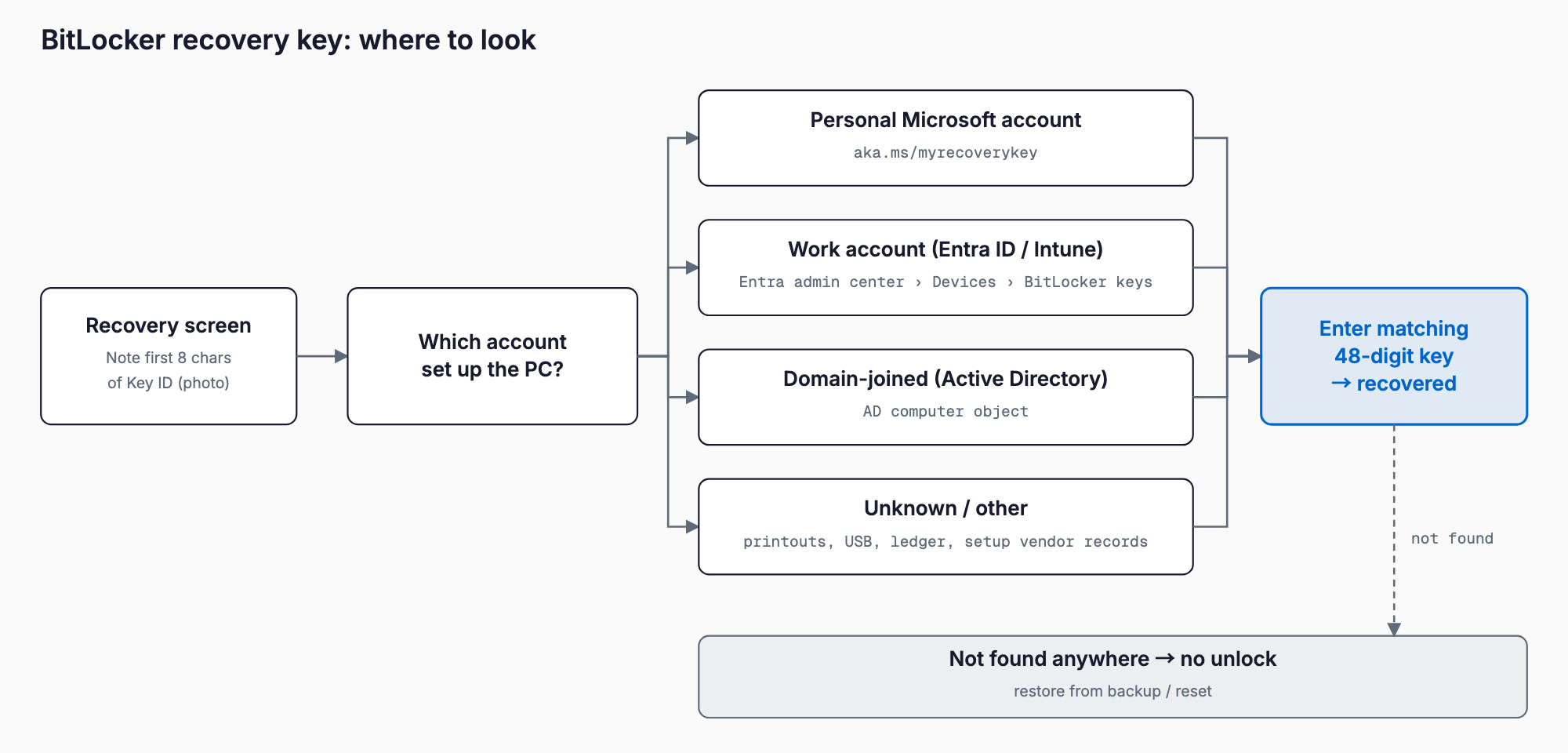
| Location | When it applies | How to check |
|---|---|---|
| Personal Microsoft account | The PC was set up by signing in with a personal Microsoft account | Sign in at aka.ms/myrecoverykey (account.microsoft.com/devices/recoverykey) from another PC or phone |
| Microsoft Entra ID (work or school account) | Signed in with a company Microsoft 365 account, or the PC is managed by Intune | Users can check their device list in "My Account"; admins open Devices in the Entra admin center and view the BitLocker keys for the PC |
| Active Directory | Domain-joined PC in an environment configured to store keys in AD | A domain admin checks the computer object in AD |
| Printout, file, or USB drive | Someone saved the key at setup | Look in safes, paperwork, shared folders, and saved USB drives |
| PC reseller or kitting vendor records | Setup was outsourced when the PCs were bought | Check the delivery setup sheet and ask the vendor |
In every case, the key step is matching the Key ID. One account can list keys for several PCs, and one PC can have old keys left over, so choose the key whose ID matches the first 8 characters shown on the screen. A different key will not unlock the drive.
Often nobody remembers which account was used for setup. In that case, check both the Microsoft account of the person who used the PC and the company Microsoft 365 account. If an employee set up a company PC with a personal account, the key exists only in that employee's personal account, so you will need their cooperation.
First response when the recovery screen appears
Stay calm and work through these steps in order.
1. Photograph the screen: capture the beginning of the Key ID and the message with your phone.
2. Do not keep power-cycling, reset, or reinstall: choosing reset or reinstall makes the encrypted data unrecoverable.
3. Disconnect peripherals: removing USB drives, external disks, or a docking station sometimes resolves it.
4. Identify the account used for setup: personal Microsoft account, company account, or domain.
5. Search for the key on another device: from another PC or phone, check the locations in the table above and find the key whose ID matches.
6. Enter the 48-digit key: type numbers only. Some screens require function-key operation, and some models ask for input via the number-row keys.
7. After recovery, suspend BitLocker before updates: from now on, suspend BitLocker protection before BIOS or firmware updates and resume it afterward.
Once you are back in, record where this PC's key is stored. It is the simplest way to avoid trouble next time. Encryption also matters a great deal if a PC is lost or stolen, so review what to do when a company PC or phone is lost or stolen. And since the failure to boot may have a cause other than encryption, PC and network troubleshooting can help narrow it down.
When the key cannot be found
Here is the honest part. BitLocker has no backdoor. Microsoft, PC makers, and resellers do not hold your recovery key on their side, except where it sits in an account or admin system you control. Calling support will not get a third party to decrypt the drive. Data recovery companies also cannot read an encrypted drive without the key.
When the key is missing, there are two realistic options.
- Restore from backup: if data remains on OneDrive, a NAS, an external drive, or cloud storage, set the PC up again and restore it.
- Reset the PC and set it up again: the data is lost, but the PC becomes usable again.
Either way there is downtime. The figures below are rough estimates only, and vary widely with environment, number of PCs, and data volume.
| Item | Rough estimate | Notes |
|---|---|---|
| Downtime per PC | Half a day to one day | Depends on how much data is restored and which apps are reinstalled |
| Re-setup work | Half a day to one day per PC | OS, apps, email, shared settings, printers, and so on |
| If outsourced | Roughly tens of thousands of yen per PC | Varies by region and scope of work |
| Data without a backup | Cannot be restored | Documents, photos, locally stored mail, and so on |
The worst case is losing the key with no backup. What you lose then is not work time but the data itself. Conversely, if you have backups, losing the key costs you about half a day to a day of work. Always think of key management and backups as a pair.
Comparing ways to manage recovery keys
Small businesses realistically have three options. Choose according to company size and number of PCs.
| Method | Cost | Effort | Main risks |
|---|---|---|---|
| Leaving it to personal Microsoft accounts | No extra cost | Easy at setup, but hard to search because there is no ledger | The account becomes inaccessible after resignation or transfer; the company cannot see what exists |
| Paper or Excel ledger | No extra cost | Manual entry for every new PC; updates are easily missed | File leaks; ledger goes stale when keys change; access control is essential |
| Microsoft Entra ID + Intune | Paid (included in plans such as Microsoft 365 Business Premium; a few thousand yen per user per month is a rough guide) | Initial setup takes effort, then keys are stored automatically | Misconfiguration can leave keys unstored; admin rights need disciplined operation |
With a handful of staff and a few PCs, a ledger with restricted access can work. But ledgers always go stale eventually. Once you have more than about ten PCs, or frequent joiners and leavers, consider a setup where keys are automatically stored on the company side through Microsoft Entra ID and Intune. Intune is included in plans such as Microsoft 365 Business Premium, and it also covers smartphone management. See the guide to mobile device management (MDM) for more.
Prevention checklist for recovery key management
Once the recovery screen appears, it is too late to start. Work through these items, beginning with whatever you can do now.
- Inventory encrypted PCs: check each PC's state under Privacy & security, Device encryption, or the BitLocker settings
- Store recovery keys centrally on the company side: automatic escrow through Entra ID/Intune, or a ledger with restricted access
- Do not let employees set up company PCs with personal Microsoft accounts: make setup with a company account the rule
- Suspend BitLocker before BIOS or firmware updates: add one line to your update procedure
- Collect keys at resignation or transfer: add "confirm the recovery key location" to your employee offboarding IT checklist
- Keep backups: hold copies of important data on OneDrive, a NAS, or similar
- Check periodically: twice a year, actually test that you can retrieve a key
The last item, testing that you can retrieve a key, is the one most often skipped. A ledger that cannot be opened when needed, or that is out of date, is a very common failure.
Frequently asked questions
Where can I find my BitLocker recovery key?
It depends on how the PC was set up. For a personal Microsoft account, use aka.ms/myrecoverykey. For a company account, check Entra ID or Intune. For a domain-joined PC, check Active Directory. Printouts, saved files, and USB drives are other candidates. Choose the key whose ID matches the first 8 characters of the Key ID on the screen.
If I do not know the recovery key, can Microsoft unlock the PC for me?
No. BitLocker has no administrator backdoor, and neither Microsoft nor the PC maker unlocks another party's encrypted drive. If the key cannot be found, the realistic options are restoring from backup or resetting and setting up the PC again.
Can I choose reset or reinstall on the recovery screen?
Not if you need the data. A reset makes the encrypted data unrecoverable. Look for the key first and check whether backups exist. Choose a reset only when the data is not needed and the key cannot be found.
Will the recovery screen keep appearing?
Normally it stops once the cause is resolved. It can recur if BitLocker is not suspended before updates, BIOS settings keep changing, or the hardware is faulty. If it appears repeatedly, suspect the update, a peripheral, or a PC that needs repair.
Summary
If you are asked for a BitLocker recovery key, do not power-cycle or reset the PC; note the Key ID and look for the 48-digit key in a personal Microsoft account, Entra ID, Active Directory, a printout or file, or a vendor's records. If it cannot be found, there is no way to extract the data, and backups are all you have. If your company knows where its keys are and has rules for suspending BitLocker before BIOS updates, collecting keys at offboarding, and keeping backups, this screen turns into a mild shock that costs half a day at most.
Related free tools (no sign-up, instant results)
Feel free to contact us
Contact Us