What Is Orca? A Guide to the Open-Source Agent Development E
nvironment for Running Claude Code and Codex in Parallel
Orca is a free, open-source (MIT) desktop app that runs Claude Code, Codex, and other CLI coding agents in parallel, each isolated in its own git worktree.
Orca is a free, open-source desktop app, licensed under MIT, that runs multiple CLI coding agents such as Claude Code and Codex in parallel, each isolated in its own git worktree. It's built by Stably AI, a San Francisco startup out of Y Combinator, and describes itself as an "Agent Development Environment" (ADE) that bundles terminals, diffs, a browser, and a CLI into one app.
As of this writing (September 20, 2026), the latest release is v1.4.205, shipped on 2026-09-17. The GitHub repository stablyai/orca has around 73,000 stars and 4,800 forks, and the app is built with Electron and TypeScript. This article walks through Orca's main features, installation, basic usage, and how it compares to existing tools, based only on the official site, official docs, and GitHub.
What Is Orca? An Agent Development Environment (ADE)
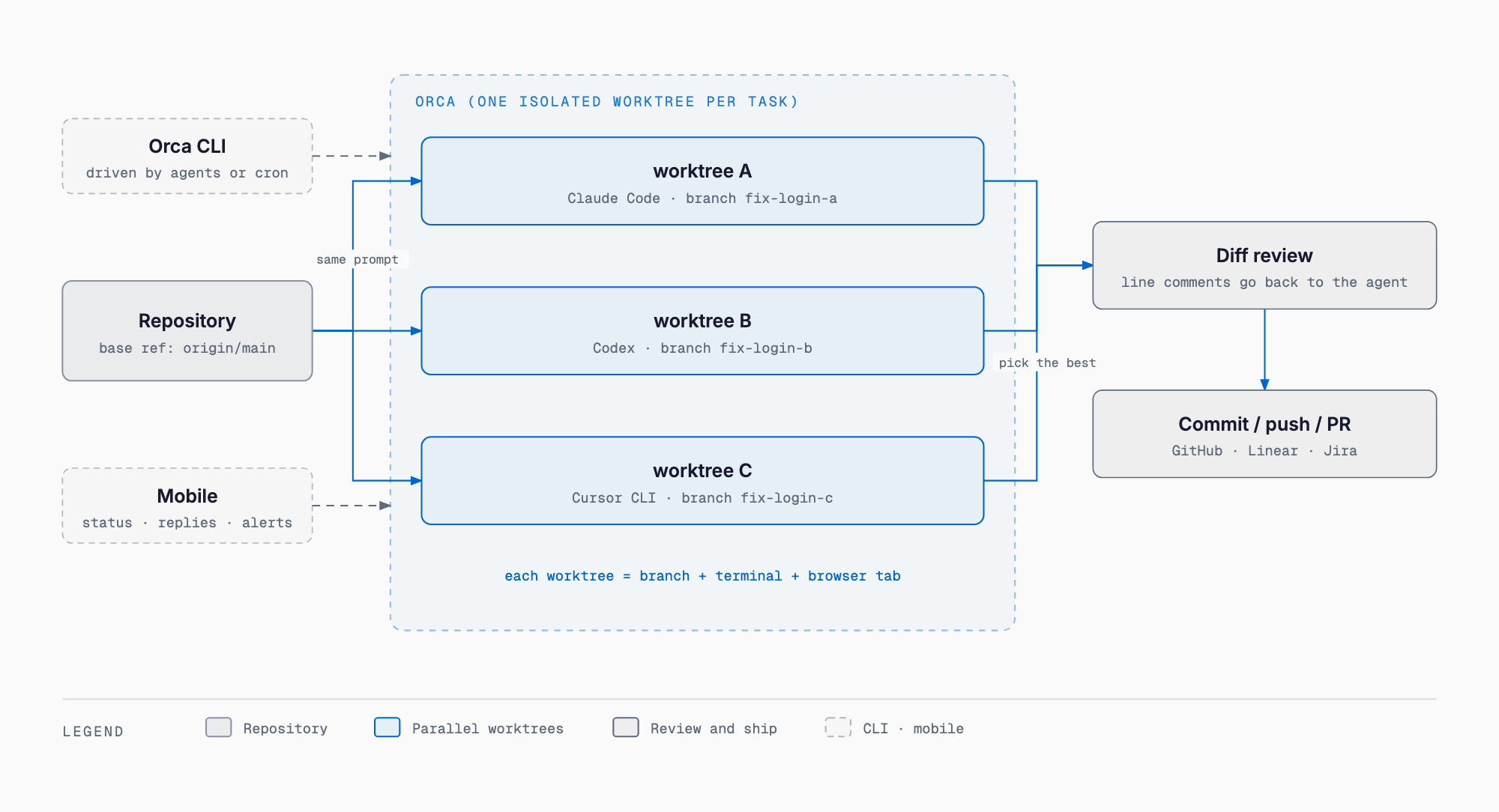
The basic flow is simple. You register an existing repository once, then create a task-scoped unit of work — a worktree — for it. Each worktree bundles a real git worktree, a dedicated branch, an agent terminal, and a dedicated browser tab. After an agent works on a task, you review the changes in the diff viewer, leave annotations on lines you care about and send them back to the agent, then commit, push, and open a PR, all from inside Orca. Because worktrees are isolated, work on one task never touches another task's files or branch.
| Item | Detail |
|---|---|
| Developer | Stably AI (San Francisco, Y Combinator) |
| License / price | Open source under MIT, free ("Free and open source. New features shipped daily.") |
| Supported OS | macOS (Apple Silicon / Intel, signed and notarized), Windows (.exe), Linux (AppImage / .deb / .rpm), iOS (App Store), Android (APK, beta) |
| Latest version | v1.4.205 (2026-09-17) — native chat improvements, blocks worktree deletion when the archive hook fails, faster Codex usage scans |
| Supported agents | Claude Code, Codex, Grok, Gemini, Cursor CLI, GitHub Copilot, OpenCode, Amp, Antigravity, Pi, Hermes Agent, Goose, Cline, Continue, Droid, Kilocode, Kimi, Kiro, Mistral Vibe, Qwen Code, Rovo Dev, Devin, and more (the official site lists 27+) |
| Implementation | Electron + TypeScript desktop app |
What Orca Does — Core Features
| Feature | Detail |
|---|---|
| Parallel Worktrees | Creates a real git worktree per task, isolating branch, files, agent terminal, and browser tab — no more stashing or branch switching |
| Terminal Splits | WebGL-rendered terminals with unlimited splits and persistent scrollback |
| Design Mode | A real Chromium window per worktree; clicking an element sends its outer HTML, surrounding context, computed styles, a cropped screenshot, and (if source maps exist) the source file and line number as one attachment to the agent |
| GitHub / Linear / Jira integration | Browse PRs, issues, and Actions, plus Linear and Jira items, inside the app. Creating a worktree from an issue feeds the branch name |
| SSH Worktrees | Run on a remote host with automatic reconnection and port forwarding |
| Annotate AI Diff | Hover a diff line to reveal a + button (or press c) to leave a Markdown comment; "Send to agent" bundles all comments with line numbers into one prompt |
| Mobile Companion | Pair with the desktop app to check all worktrees' status, use a chat UI or the raw terminal, reply to blocked tasks, and review, stage, and commit changed files from a phone |
| Orca CLI | The orca binary automates nearly every action with --json; agents themselves can use it via npx skills add |
| Usage / rate-limit tracking | Shows usage windows for Claude Code, Codex, Gemini, OpenCode, Kimi Code, and MiniMax in the status bar, with warnings past 80% |
| Other | Monaco editor with autosave, a Markdown editor, HTML / Mermaid / PDF / image viewers, session restore, agent hibernation, hooks and memory, notifications and an inbox, a skill registry and MCP, and orca emulator for driving things like an iOS simulator |
Design Mode translates visual feedback about the UI into code-level context automatically. Toggle Design Mode from the toolbar of the real Chromium window that runs alongside each worktree, then click the element you want changed. Its outer HTML, surrounding context, computed styles, a cropped screenshot, and — if source maps are available — the source file and line number are all handed to the agent's terminal as a single attachment. You can queue up multiple annotations in a tray before sending them together. Once the agent fixes the code, the page hot-reloads so you can click the same element again to verify the result.
Annotate AI Diff turns code-review comments directly into agent instructions. Hovering a line in the diff viewer reveals a + button (or press c) to leave a Markdown comment. Clicking "Send to agent" at the top bundles every comment, with line numbers, into a single prompt that can go to an existing agent session or start a new one. Comments track their line even as edits shift things around, and resolved comments can be collapsed with "Resolve." Note that the "Send Review Notes to Agent" shortcut has no default key binding — you need to set one under Settings → Shortcuts.
Installation and Pricing
# macOS (Homebrew)
brew install --cask stablyai/orca/orca
brew upgrade --cask orca

# Arch Linux (AUR)
yay -S stably-orca-bin
Outside of those two options, Orca is downloaded directly from GitHub Releases or the official site: a .dmg for macOS (separate Apple Silicon and Intel builds), a .exe for Windows, and an AppImage (self-updating), .deb, or .rpm for Linux (updated via the package manager). The app itself is free and open source under MIT, but Orca only orchestrates agent execution — you bring your own subscription for each agent. Prompts and code go directly to whichever provider you've configured, not through Orca. On first launch it asks for access to your home directory and can optionally import existing terminal settings or API credentials. On Windows, pick PowerShell or CMD as the default shell under Settings → Terminal. Updates automatically follow the stable channel (Shift-click the update check to get an RC build).
Getting Started — Racing Three Agents on the Same Task
- Click "Add Repo" in the sidebar and pick a local checkout; its default branch becomes the base ref
- Click the "+" next to the repo name, name the task (e.g. fix-login-race), and create a worktree. It can start from the base ref (origin/main), or any other branch or commit
- Pick an agent (Claude Code, Codex, Cursor CLI, etc.) from the terminal dropdown
- Repeat steps 2–3 twice more to create three worktrees and send them the same prompt
- Drag the tabs to the side or bottom to split the view and watch all three run at once
- Compare the results in the diff viewer, use Annotate AI Diff to send follow-up instructions to the best candidate, then commit and push from Orca. Delete the worktrees you didn't pick (their branches are deleted automatically)
A fresh worktree is a clean checkout, so it has no installed dependencies like node_modules. The official docs list three ways to deal with this.
| Approach | Detail |
|---|---|
| Worktree Shared Paths | Set in repo settings; applied to each worktree as an APFS clone copy on macOS or a symlink elsewhere |
| worktree.sharedDirectories in orca.yaml | Shares gitignored directories across worktrees |
| .worktreeinclude | Copies gitignored files into each worktree; literal paths only, no globs or negation |
# orca.yaml
worktree:
  sharedDirectories:
    - node_modules
    - .cache
# .worktreeinclude
.env
.env.local
.vscode/settings.jsonBranch names are generated automatically from the workspace name or a linked issue (emoji get converted to shortcodes like rocket), or you can set one explicitly under Advanced. Deleting a worktree removes its directory and branch after confirmation; branches with unmerged commits are kept and surfaced in the review screen instead. Worktrees created outside Orca with git worktree add don't show up in the sidebar until you explicitly reveal them. More worktrees mean more file-watching and memory use, so official troubleshooting guidance recommends closing worktrees you're not using — splits with many browser tabs are especially heavy on RAM.
Four Ways to Run Orca — Local, SSH, Remote Orca Server, Cloud VM
Orca offers four ways to run, differing in where the UI and the agent runtime actually live: Local, which stays entirely on your laptop; SSH, which connects to an existing remote host; Remote Orca Server, a dedicated always-on machine shared by multiple clients; and the experimental Cloud VM, which spins up a disposable environment per task.
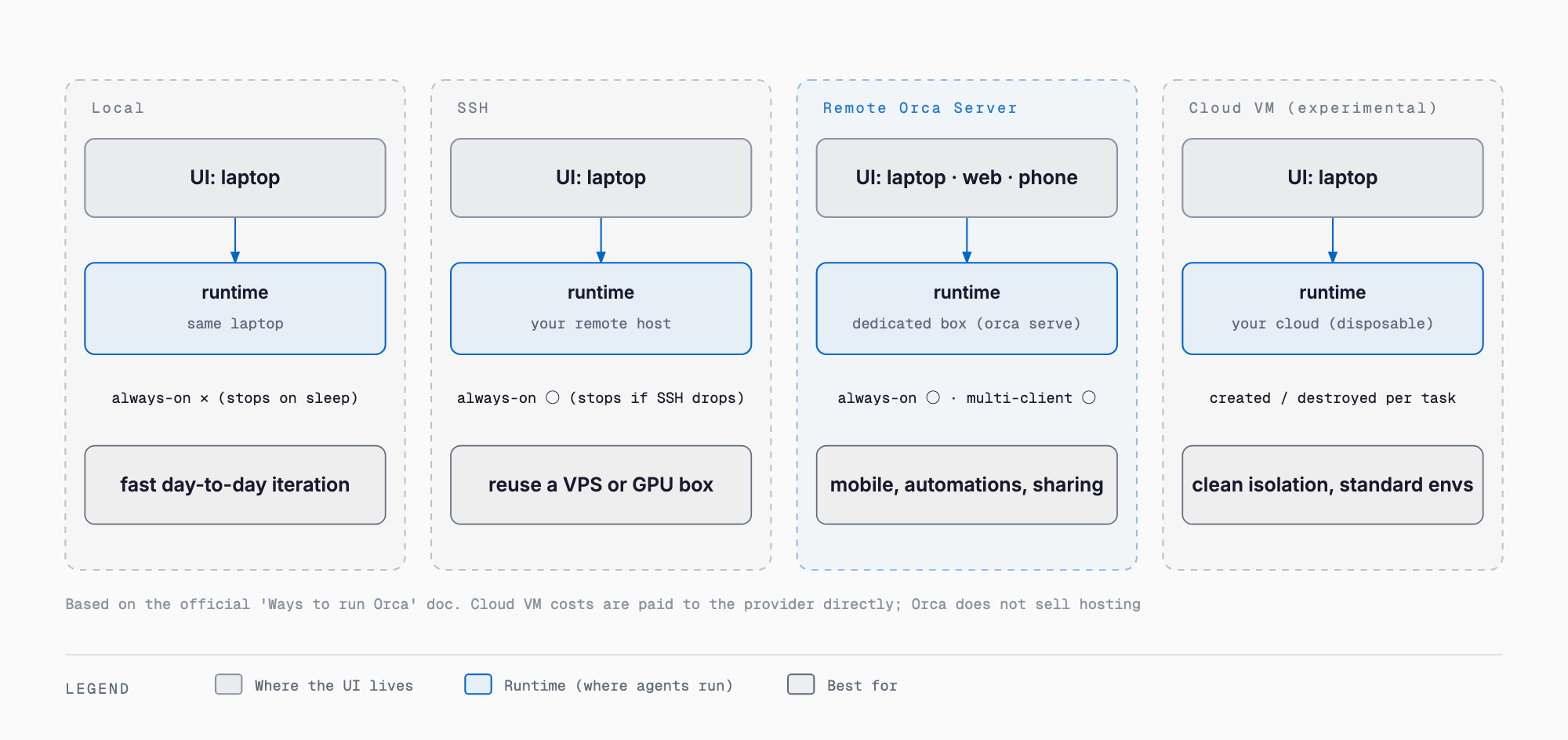
| Mode | Runtime location | Multiple clients | Always on | Good for |
|---|---|---|---|---|
| Local | Your own laptop | No | No (stops when it sleeps) | Fast day-to-day iteration |
| SSH | Your own remote host | No | Yes (on the remote side) | Reusing an existing VPS, GPU box, or Mac mini |
| Remote Orca Server | A dedicated machine | Yes (laptop, web, phone, and automation share the same runtime) | Yes | Mobile reconnects, automation, team sharing |
| Cloud VM (experimental) | Your own cloud account | Per workspace | No | Full isolation per task, disposable |
orca serve --pairing-address <tailscale IP or hostname>To run over SSH, add a host and test the connection under Settings → SSH (the remote side needs git), then pick that host under "Run on" when creating a worktree; the agent stops if the SSH connection drops. Remote Orca Server requires installing both Orca and Tailscale on the server and the client: on the server, toggle "Advertise this app as a server" under Settings → Remote Orca Servers and issue a New Link, then paste that link into Add Server on the client. A headless Linux server starts with the command above. Cloud VM is an experimental feature enabled under Settings → Experimental; you install the Cloud VM skill and have the agent write environment recipes as environmentRecipes in orca.yaml. Example supported providers include Vercel Sandbox, Fly, Modal, a plain SSH host, and local Docker. Orca does not sell managed hosting itself — usage fees go directly to whichever provider you choose.
CLI and Automation — Letting Agents Drive Orca
Orca also exposes a CLI, the orca binary, registered from Settings → General → Orca CLI (macOS creates a shim in ~/.local/bin). Nearly every command accepts --json, and the CLI is designed as much for agents to drive Orca as for humans. To let an agent use the Orca CLI, run npx skills add https://github.com/stablyai/orca --skill orca-cli (or orca skills install --skill orca-cli in a headless environment).
command -v orca
orca status --json
orca worktree create --repo id:<repoId> --name my-task --issue 123 --json
orca worktree ps --json
orca terminal send --text "continue" --enter --json
orca terminal wait --for tui-idle --timeout-ms 30000 --json
orca terminal read --json
orca goto --url https://example.com --json
orca snapshot --json
orca screenshot --json
orca worktree set --worktree active --comment "reproduced bug" --workspace-status in-progress --json
Enabling Settings → Experimental unlocks an orchestration layer for coordinating multiple agents, built around Runs (a namespace plus a coordinator inbox), Tasks, Dispatches, workers, messages, and decision gates.
orca orchestration run-create --objective "Your goal" --json
orca orchestration task-create --spec "Work item" --task-title "Title" --json
orca orchestration worker-start --task <taskId> --worktree current --agent codex --json
orca orchestration check --wait --types worker_done,escalation,question --timeout-ms 900000 --json
A worker sends orca orchestration send --type worker_done ... --task-id <taskId> --dispatch-id <dispatchId> --outcome succeeded exactly once when a task finishes, whether it succeeded or failed. For a one-off instruction, the docs note that orca terminal send alone is enough — orchestration isn't required. For recurring work, Orca uses Automations.
orca automations create \
  --name "Nightly triage" \
  --trigger "0 18 * * 1-5" \
  --prompt "Triage new issues and label them" \
  --provider claude \
  --repo id:<repoId> \
  --disabled
Triggers can be hourly, daily, weekdays, or weekly, or a cron expression or RRULE. --timezone takes an IANA name, --precheck "command" skips a run when the check fails, --reuse-session reuses the same session, and --missed-run-grace-minutes 30 sets a grace window for missed runs. The docs recommend creating automations with --disabled first and testing before turning them on. Running an automation requires either the desktop app to be open or a Remote Orca Server; results show up on the Automations page and via orca automations runs --id <automationId> --json.
Mobile Companion pairs a phone with the desktop app using a one-time code shown in the desktop account menu. It connects either through Orca Relay (which requires sign-in, with an optional fast LAN path) or a direct LAN connection. From the phone you can see the status of every worktree (working, done, or blocked), use a chat UI or the raw terminal, get push notifications on completion, send short replies — text, photo, or voice — to a blocked task, switch accounts and check usage, run Quick Commands, review, stage, and commit changed files, and even create new worktrees. The official description frames it as "not a full editor, but a remote control for your running desktop," and the connection drops when the desktop app is closed. The docs don't specify encryption details.
How Orca Compares to cmux, Herdr, tmux, and Cursor
| Aspect | Orca | cmux / Herdr | tmux | AI IDEs like Cursor |
|---|---|---|---|---|
| Unit of work | Per worktree (branch + terminal + browser bundled) | Terminal-centric (cmux is macOS-native; Herdr is an in-terminal multiplexer) | Panes (worktree management is up to you) | Chat with AI inside one editor |
| Diff review | Built in (Annotate AI Diff: line comments sent to the agent) | Check each tool's current docs | None (needs a separate tool) | In-editor diff view |
| Browser | A real Chromium instance per worktree (Design Mode) | Check each tool's current docs | None | Roughly dev-tools level |
| Mobile / remote | Mobile Companion and Remote Orca Server | Check each tool's current docs | Depends on SSH | Check each tool's current docs |
| Runtime options | Local / SSH / Remote Orca Server / Cloud VM (experimental) | Herdr is lightweight and works even assuming SSH; cmux is macOS-native | Whatever terminal runs over your SSH connection | Check each tool's current docs |
| App weight | Heavier, being Electron-based and bundling worktrees, diffs, a browser, and mobile | Relatively lightweight, terminal-focused | Lightest | Comparable to a regular editor |
| Best for | Teams or individuals who want to seriously compare multiple agents in parallel | People who want fast, terminal-driven parallel runs | People who want to assemble their own familiar terminal setup | People who want AI help inside a single editor |
For a closer look at cmux and Herdr specifically, see our cmux deep dive and our Herdr deep dive. These tools all ship fast, so always check the official docs for the current spec.
Things to Know Before Adopting Orca
- Each agent CLI (Claude Code, Codex, etc.) still needs its own install and authentication — Orca only orchestrates them
- More worktrees mean more file-watching and memory use; close ones you're not using, and note that splits with many browser tabs are especially RAM-heavy
- Usage and cost figures are estimates read from local usage files an agent writes, not from direct API calls, so they can lag; check each provider's console for accurate billing
- Local mode stops when your laptop sleeps, so consider SSH or Remote Orca Server if you need something always on
- Telemetry (via PostHog Cloud, anonymous usage events only — no file paths, prompts, responses, or terminal content) is on by default; opt out via Settings → Privacy or the environment variables DO_NOT_TRACK=1 / ORCA_TELEMETRY_DISABLED=1
- Releases ship very fast, roughly every one to two days — teams using Orca for real work should agree on when to update
The official docs don't mention Japanese-language UI or IME support one way or the other. For the basics of Claude Code itself, see our complete Claude Code guide.
Frequently Asked Questions
Is Orca free to use?
The app itself is free and open source under MIT. But Orca only orchestrates agent execution — you need to bring your own subscription for each agent, such as Claude Code or Codex.
Do I still need a separate Claude Code or OpenAI subscription?
Yes. Orca just sends your prompts and code directly to whichever provider you've configured; it doesn't cover or replace the agent's own subscription or billing.
Does Orca run on Windows?
Yes. A .exe is distributed for Windows, and you choose PowerShell or CMD as the default shell under Settings → Terminal. It also supports macOS (Apple Silicon / Intel), Linux (AppImage / .deb / .rpm), iOS, and Android (beta).
Does my code or prompts get sent to Stably AI?
According to the docs, only anonymous usage events go through PostHog Cloud — things like app launches, agent type, how a repo was added, coarse error categories, and OS/CPU/version. The docs explicitly state that file paths, repo names, branch names, URLs, commit messages, prompts, responses, and terminal content are not sent.
What can I do from my phone?
Pairing with Mobile Companion lets you check the status of every worktree, use a chat UI or the raw terminal, get push notifications on completion, send short replies to a blocked task, review/stage/commit changed files, and create new worktrees. The official description calls it "a remote control, not a full editor," and the connection drops once the desktop app is closed.
If I'm already happy with tmux or cmux, do I need to switch to Orca?
Not necessarily. tmux and cmux are lighter, terminal-centric options, while Orca bundles worktree management, diff annotation, a per-worktree browser, and mobile/remote access into one Electron app, which makes it heavier. Which tool fits depends on what you value, so it's worth comparing each tool's current feature set before deciding.
Summary
Orca runs multiple coding agents in parallel, one per worktree, and tries to fold diff review and in-browser verification into a single app. It's free and open source under MIT, and it also reaches beyond local use into remote execution over SSH or a Remote Orca Server, plus automation through its CLI and orchestration layer.
That said, each agent's own subscription and authentication is still your responsibility, and more worktrees mean more machine resources consumed. Starting locally with one or two worktrees and expanding to SSH, Remote Orca Server, or Cloud VM as needed looks like a reasonable way to adopt it.
References (Primary Sources)
Related free tools (no sign-up, instant results)
Feel free to contact us
Contact Us